

Control images and screenshots
APS lets you display images and screenshots that will stay on top of the screen above all other application-windows. You can create smooth transition between presentations, and cover the screen when there is no presentation displayed. And with the “Freeze” command, you can display the current slide while you go out of the presentation to do edits.
The idea behind the images is to be able to display the presentation-display directly to the audience without needing any video-switcher in between.
1. Select images for the image-slots
APS lets you select up 10 images at a time that can be recalled. There are two ways to select them:
– select an image file
– take a screenshot
Selecting an image-file from the hard-drive is similar to how you select slot-presentations: you can drag and drop an image to the folder-icon on the image-slot, or you can select an image from the file-system by clicking on the same icon.
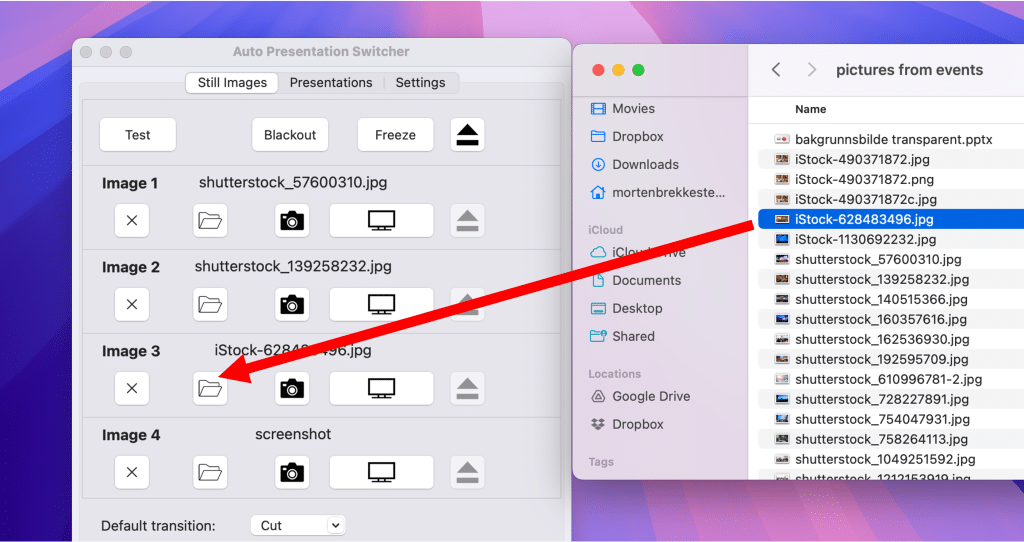
The camera icon will take a screenshot of “main presenter screen” and store that to the image-slot.
2. Main presenter screen
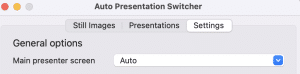
This setting will decide on which display all the images will display, and screenshots will be taken. It should normally be set to the same display as you have chosen for the presentations. The “Auto” setting assumes that you will always use the extended display to display visual content, while using the main computer-display for controlling. You can override this setting by choosing one of the available displays instead.
3. Take screenshots from Companion
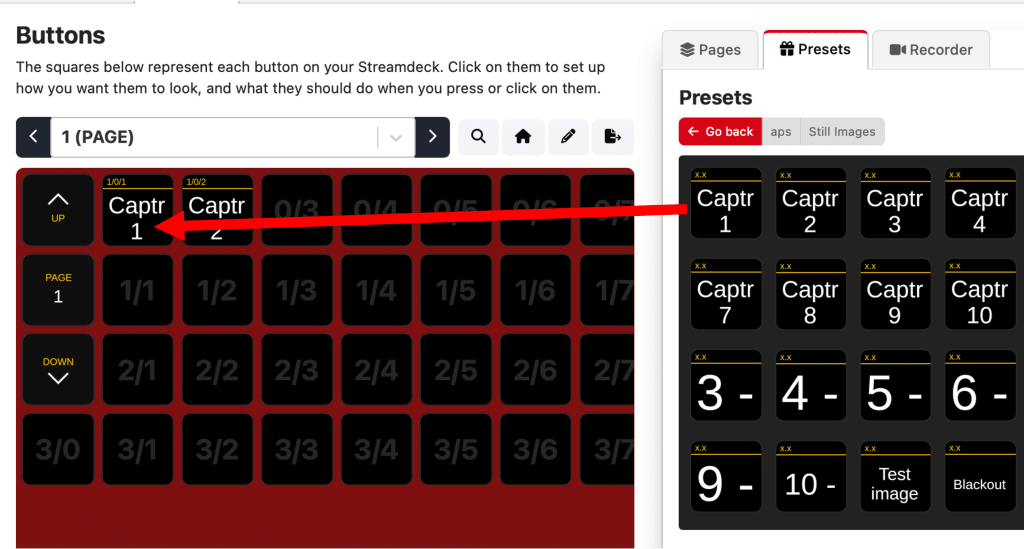
The “Capture” buttons in Companion, available from the Still Images presets, will take screenshots and store the to the image-slots, similar to the camera buttons in the user-interface
4. Display images from Companion
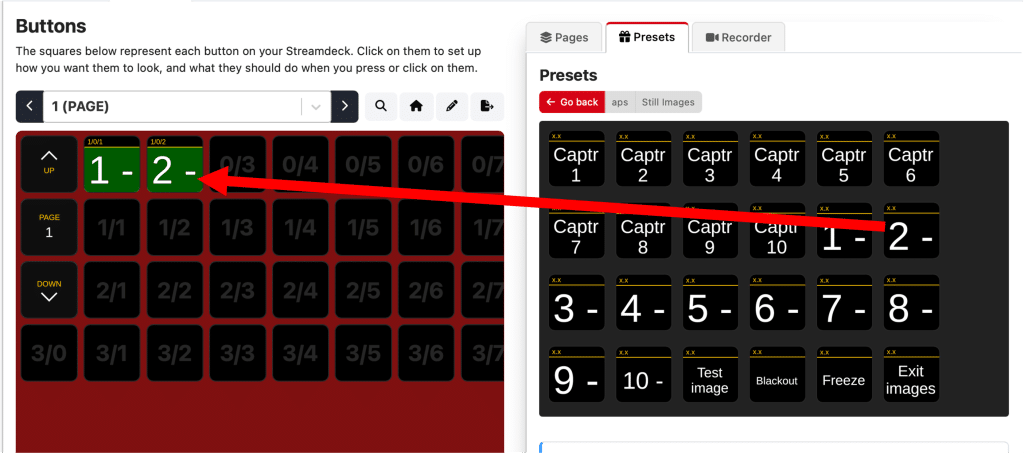
The numbered buttons from the still images presets will display images 1-10. When an image is selected for the slot, the background-colour will be green. While an image is displayed, the background-colour will be red.
5. Freeze the screen
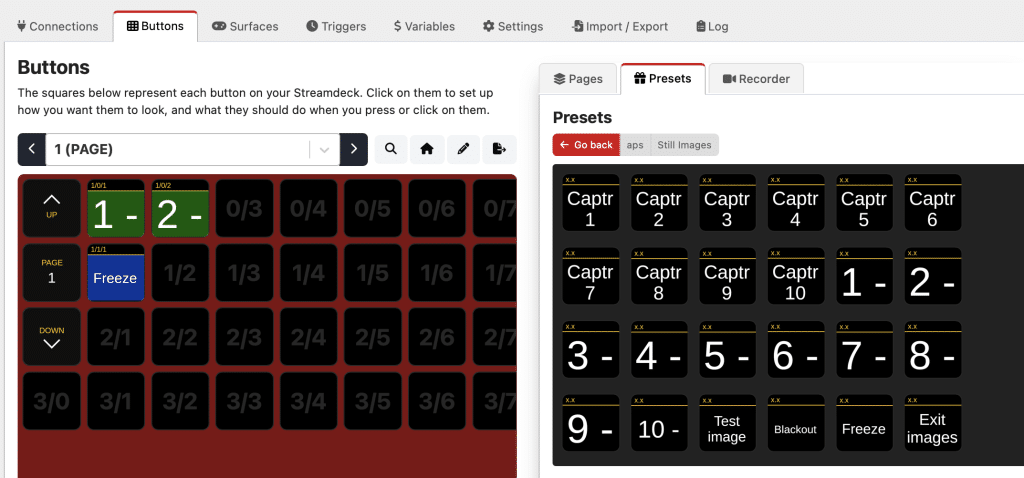
The “Freeze” button will take a screenshot of the main presenter screen, and immediately display this on top of the same screen, thus emulating a “freeze” effect. While the screenshot is displayed, the button will lit red.
The freeze-command lets you hold the current slide while you go out of the presentation to do edits. When you are back to the presentation, the audience wont have noticed that the presentation was exited. The effect is similar to the “Freeze” button typically found in hardware video-switchers.