

Companion pages for APS
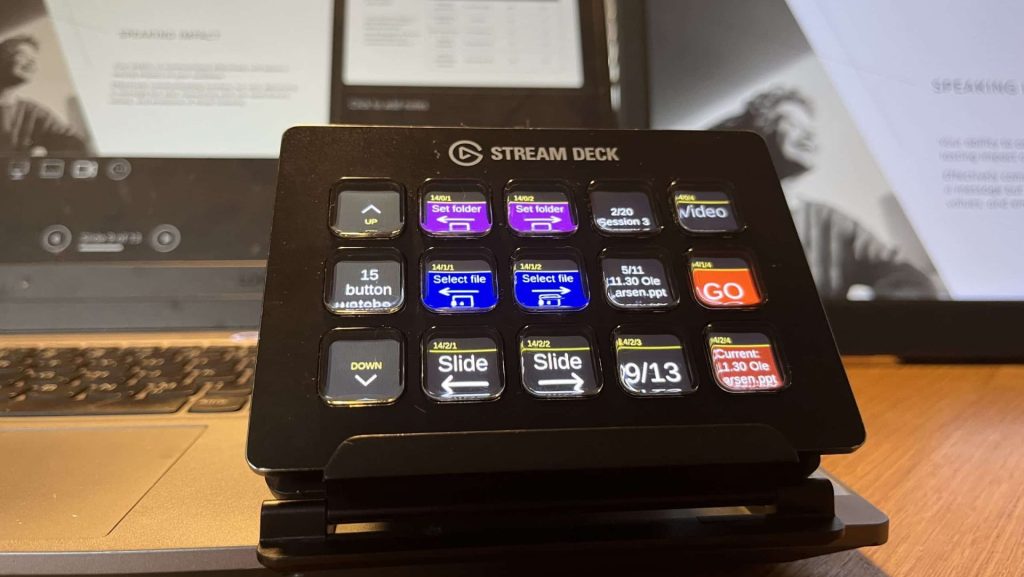
We have created Companion page templates that you can import into your Bitfocus Companion setup to control Auto Presentation Switcher.
Jump to Companion pages for:
1. Presentations: Watched folder
2. Presentations: Slots
3. APS Media Player control
4. Google Chrome and Google Slides control
5. PowerPoint media control
How to import Companion pages
Import the files downloaded here into empty pages in Bitfocus Companion. During import, make sure the commands are linked to your APS Companion module. This video shows how:
1. Start presentations from the watched folder
With APS, you can start presentations from Companion buttons in two different ways. One option is to use Slot commands, where each button is assigned to a specific presentation. The other option is to use a watched folder, which gives you access to all files in a selected folder directly from Companion.
The watched folder is updated in real time, so any changes to the folder will automatically appear on the Companion buttons. To start a presentation, simply press the corresponding button.
The watched folder is the folder that APS monitors in real time and displays on the Companion buttons. It is also the folder used in the videos and templates below.
To choose which folders APS should monitor, go to Presentations > Folders in the APS main menu. From there, add the folders you want to make available. Then select which folder APS should currently watch by clicking the button to the left of the folder name. When a folder is selected correctly, it will be marked with a red square.
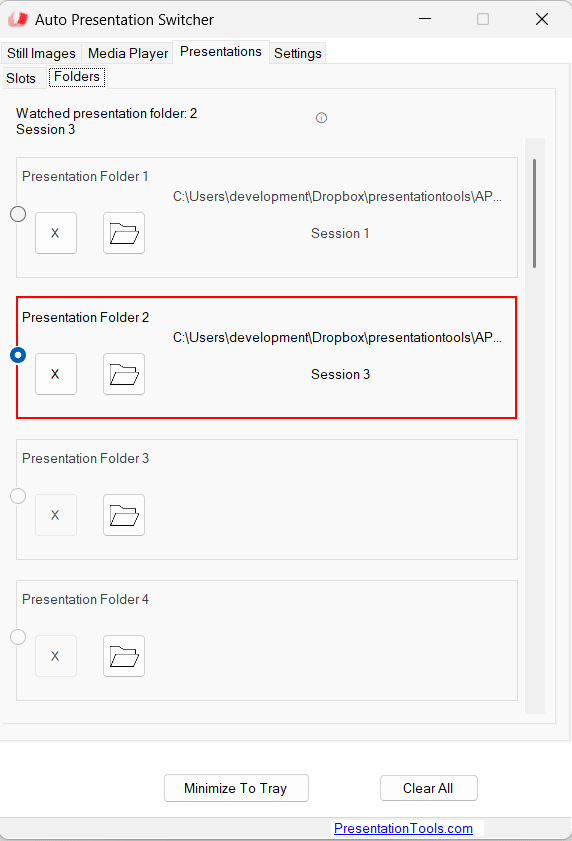
In this example, the folder “Session 3” is currently selected as the watched folder.
Tip: If you want to control the same presentations from different computers, choose a folder that can be synchronized through a cloud service such as Dropbox or Google Drive.
1a. Start presentations from the watched folder with Stream Deck +
Download:
Stream Deck + start presentations from watched folder
This video shows a workflow where you first select a presentation from the watched folder and then use other buttons to open it. You can download the Stream Deck + template used in the video below.
1b. Start from watched folder on Stream Deck MK.2
Download:
Stream Deck MK.2 start presentations from watched folder
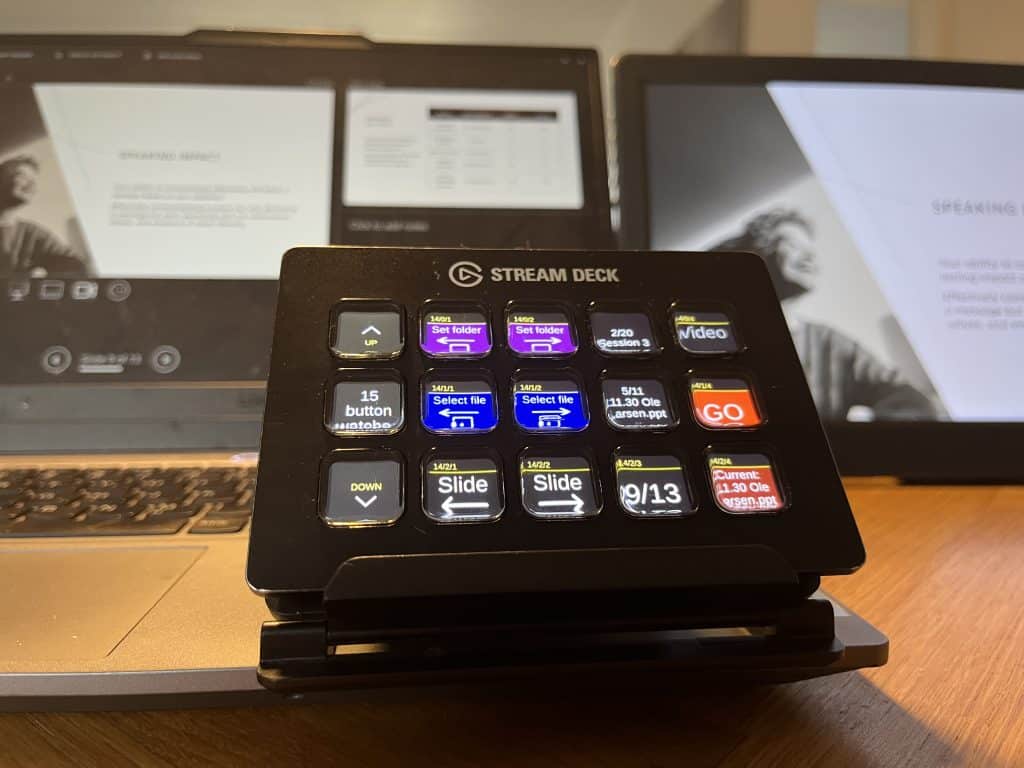
This page offers a similar workflow to the video above, but for the 15-button Stream Deck MK.2. First, select the folder you want to work with. Then choose a file from that folder and start it with the Go button.
We have also included slide controls, and the button in the top-right corner can show how much time is left in a PowerPoint video.
1c. Start presentations from watched folder on Stream Deck XL
Download:
Stream Deck XL Start from watched folder
With the larger 32-button Stream Deck XL, you may have enough space to place all your presentations on a single page. In this template, you can display up to 18 presentations from the watched folder and start them directly by pressing the button for each presentation.
2. Slot presentations
Download:
Stream Deck MK.2 presentation slot select – Edit mode
Stream Deck MK.2 presentation slot display – Show mode
Stream Deck + presentation slot select – Edit mode
Stream Deck + presentation slot display – Show mode
Slot presentations let you assign specific presentations to buttons. Unlike the watched folder, these buttons do not change when presentations are added to or removed from the folder.
These templates are available in two categories:
- Show mode pages open the slot presentations directly, as shown in the video above.
- Edit mode pages let you assign presentations to slots from the watched folder. This means you can choose which presentations to use from Companion, without going through the APS user interface.
The video below shows how to assign presentations to slots in this way: first select the presentation you want from the watched folder, then select the slot and press Store.
To clear a slot, you can also long-press the Store button.
3. Companion pages for the APS media player
Download:
Stream Deck + media player select media for slot edit mode
Stream Deck + media player start media show mode
Stream Deck XL media player select media edit mode
Stream Deck XL media player start media show mode
These templates in Show mode let you control the APS media player as shown in the video: select, start, and stop audio, video, and image files with Companion buttons, while also monitoring playback progress.
As with presentations, you can also choose media from the watched folder using Companion buttons. For this workflow, use the pages marked Edit mode. Note that these pages only let you choose which media files are assigned to the 40 preselected media slots. It is currently not possible to start media files directly from the watched media folder in the same way as with presentations.
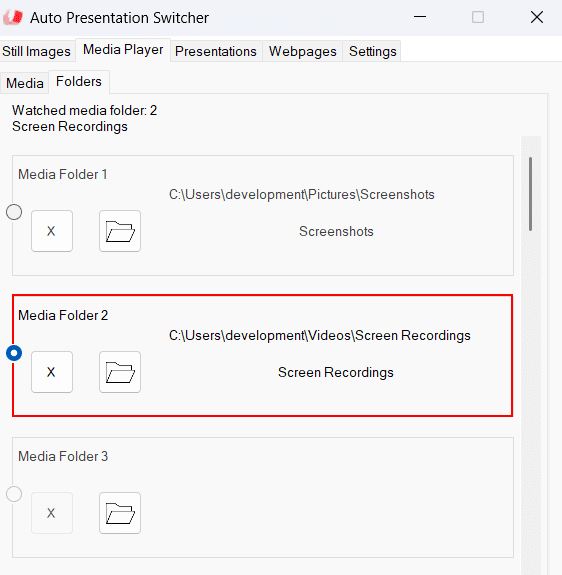
To start using the watched folder for media, go to Media > Folders in the APS user interface and select your folders in the same way as for presentations.
4. Companion page for controlling webpages and Google Slides through APS
Download:
Stream Deck MK.2 webpage and Google Slides control
APS can remote-control Google Chrome to open webpages, switch between browser tabs, and display webpages in fullscreen.
When APS detects a Google Slides presentation, it can automatically enter and exit slideshow mode, with optional presenter view. This means no separate webpage buttons are needed for normal Google Slides operation.
Below is a full tutorial-video on how to use APS with Companion. This video uses a slightly different Companion layout that can be found here:
5. PowerPoint media control
Download
Stream Deck page for PowerPoint media control for APS
This page only contains a few buttons and will work on most Stream Decks.
In PowerPoint for Windows, APS can control and monitor videos embedded in a presentation. You can:
Start, pause, and stop videos embedded in a PowerPoint slide
Seek forward/backwards in the video timeline
See a live countdown of the remaining video time
Monitor playback state (Playing, Paused, Stopped, Ready)
Create your own layout
The Companion pages provided here are just a starting point. To get the most out of Bitfocus Companion, you can create your own layout or customize the pages found here to suit your workflow.
The video shows how you can do this by copying and pasting buttons and by using the preset buttons we created for APS.
Tip: You can copy some of the PowerPoint media control buttons to pages where this functionality is not already included.