

APS Companion connection guide
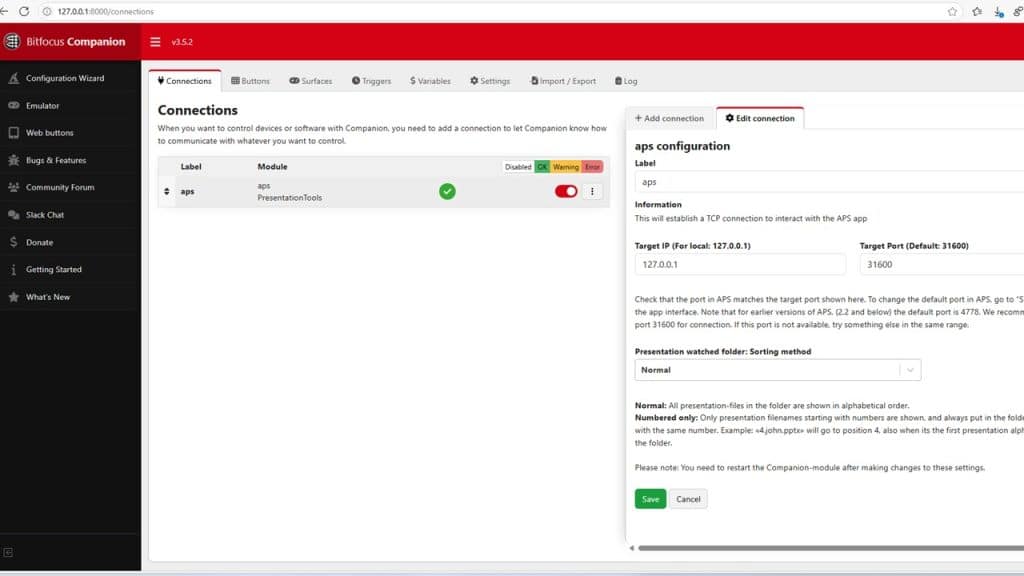
To get the best out of APS, you should pair it up with Companion. This opens up a lot of possibilities for controlling your presentations, backdrop-images, and videos. In this article we take you through the basic steps for using APS and Companion together.
1. Download and install Bitfocus Companion
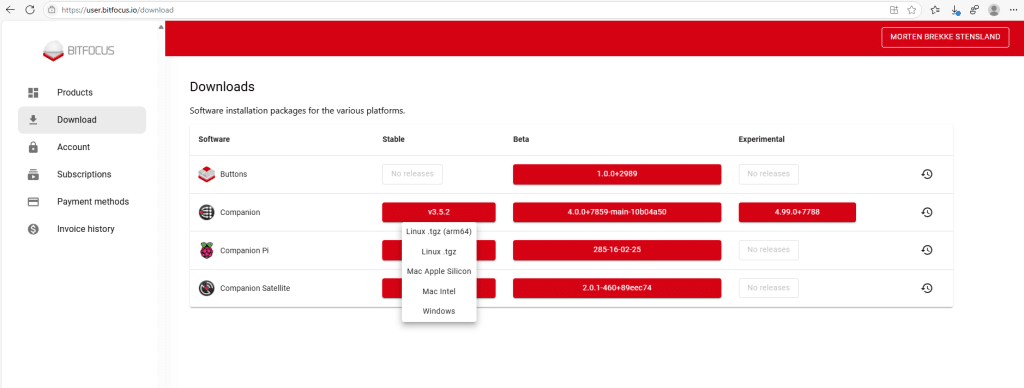
You can download Companion from here:
Bitfocus AS
To access the downloads, create a user on their site. In the Download section, you can choose between the stable or the beta release. Sometimes APS has new features that are only available in the betas, but for normal operations you should download the latest stable version.
Remember to choose the version for you platform. On Mac you can choose between Intel or Apple Silicon versions, depending on what Mac you plan to use with Companion.
Installation should be straight forward. Companion is free to use, so there is no licence-key or login necessary to start using the program.
2. Activate the APS module
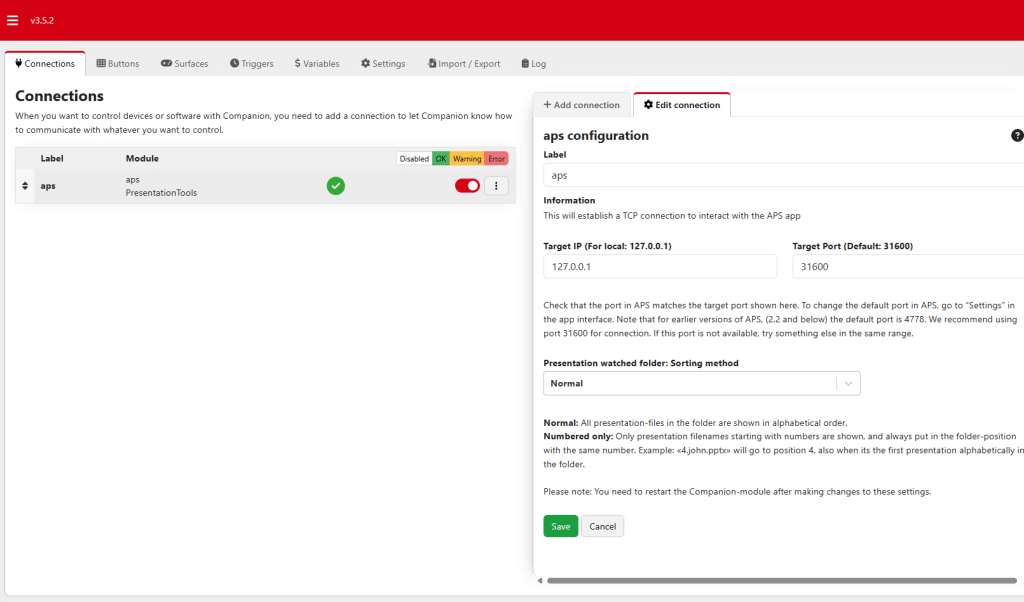
Make sure that APS is running. In Companion, push “Add connections” and search for Auto Presentation Switcher, and add it.
The target IP is the IP-address of the computer running APS. If its on the same computer as Companion, use the localhost address 127.0.0.1. For target port, use the default 31600 unless you get unexpected problems. (in theory, some other application could occupy any port). APS will use port 31600 unless you manually change it from the settings.
When the module blinks green, it means that the connection between APS and Companion is good, and you are ready to proceed.
Troubleshoot network-problems
If you don’t get the green checkmark, it means that something is wrong with the connection between Companion and APS. Here are some steps in troubleshooting:
– Doublecheck the IP address. Make sure that the computer running APS has network-connection with the computer running Companion. Check that they are connected to the same network. If possible, try to control another application on the same computer as APS. If no other application can be controlled from Companion either, the problem is with the network.
– Doublecheck the port-number.
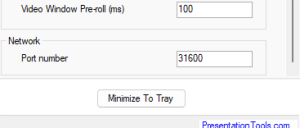
Verify that the port-number in Companion and APS are the same
– Change port-number
Try another port-number than the default 31600. Remember to change on both APS and Companion
– Check firewall settings
Make sure that no firewall on the APS and/or Companion is preventing traffic between APS and Companion
– Try a different network
If you are still having trouble after going through all these steps, it could be that the IT-administrator on your network has put som hidden restrictions on network-traffic, or something else beyond your control. Then it could be an idea to try a different network and see if this helps.
Test Companion commands with APS
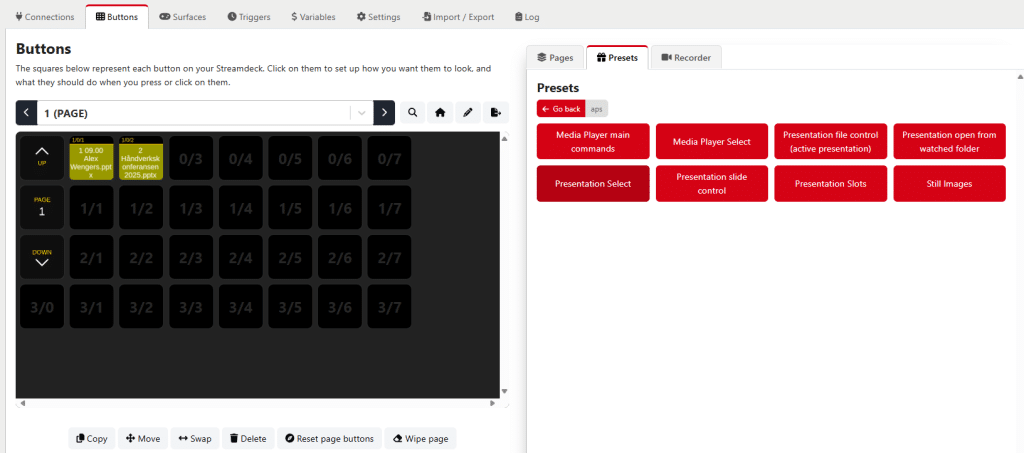
In the presets we have some premade buttons that are ready to use with Companion commands for APS. You can drag and drop the buttons from the presets to where you want them on the page.
For a start, you could try the slot-presentations. First, in APS, select a presentation for slot 1
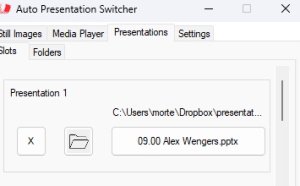
In Companion, go to APS presets, Presentation Slots, then drag and drop slot 1 to one of the available Companion buttons.
Then select the new button, go to button settings, and push the yellow “Test” button on top. This should activate the command, and if all goes as planned, the slot 1 presentation will display.
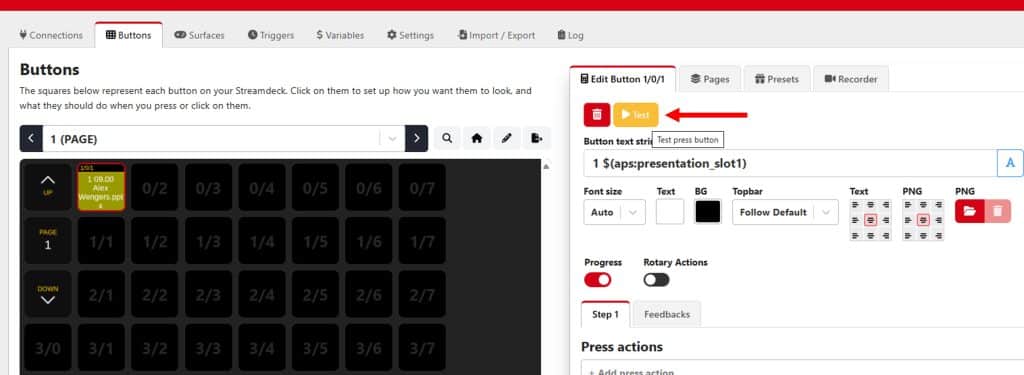
If you manage to get this slot-button working, it means that APS and Companion is speaking together nicely, and you are ready to expand with more commands and advanced workflows.