


Admin
Buy from $40/yr

New Public beta

Introducing APS Hub

Control all your APS machines from one place

APS Hub brings the (almost) complete Auto Presentation Switcher interface to your browser — monitor every machine, change settings mid-show, and send files across your local network.

Free controller app Beta Windows and Mac

APS runs the presentation. Hub controls APS. Each presentation computer needs APS 4.4 or newer. APS is the paid product; the Hub controller is free and does not replace APS.
APS Hub running in a browser, connected to PC #1 with the "Now showing" panel live
APS Hub running in the browser — full control of a live machine.

Why we built it

Bitfocus Companion and Stream Deck remain the primary way to control APS: nothing beats a physical button for the commands you fire all show long. But Companion was never meant to be a complete user interface for an application, and APS keeps growing — we can't ask you to build a button for every option.

That matters because of a simple fact of live production: the presentation computer is not available to the operator. Once it's on screen, you can't open the local APS interface without disrupting the show. Want to change the Link presentations setting while a presentation is running? Until now, you waited for the break. APS Hub has the button ready.

Tip: You could recreate most of the APS interface in Companion — but it would take five or six full pages. We think the better setup is Stream Deck buttons for the operations you use constantly, and APS Hub for everything else.
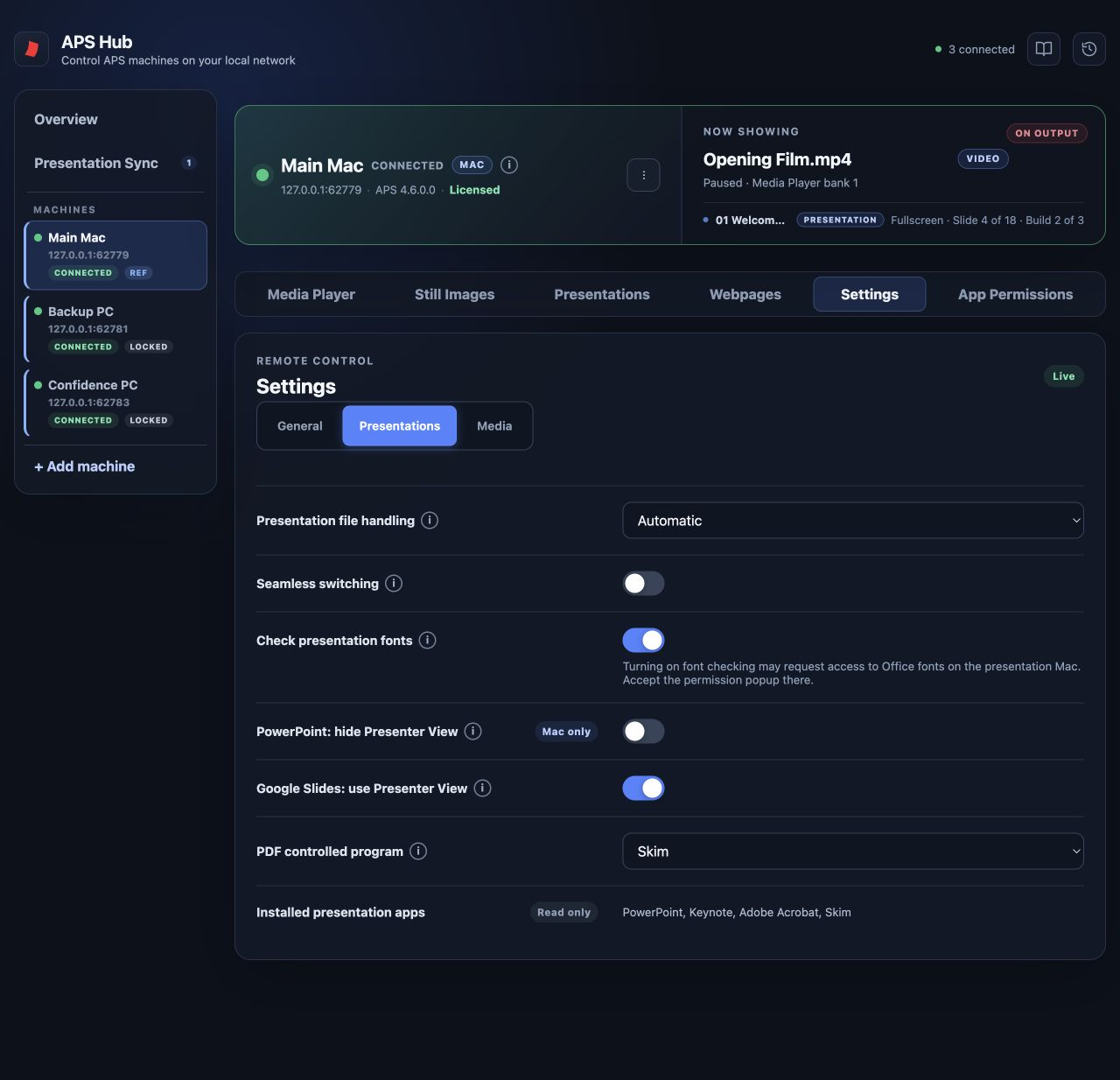
APS Hub remote control settings panel with the green "Live" badge
Settings stay reachable while the show runs — note the Live badge.
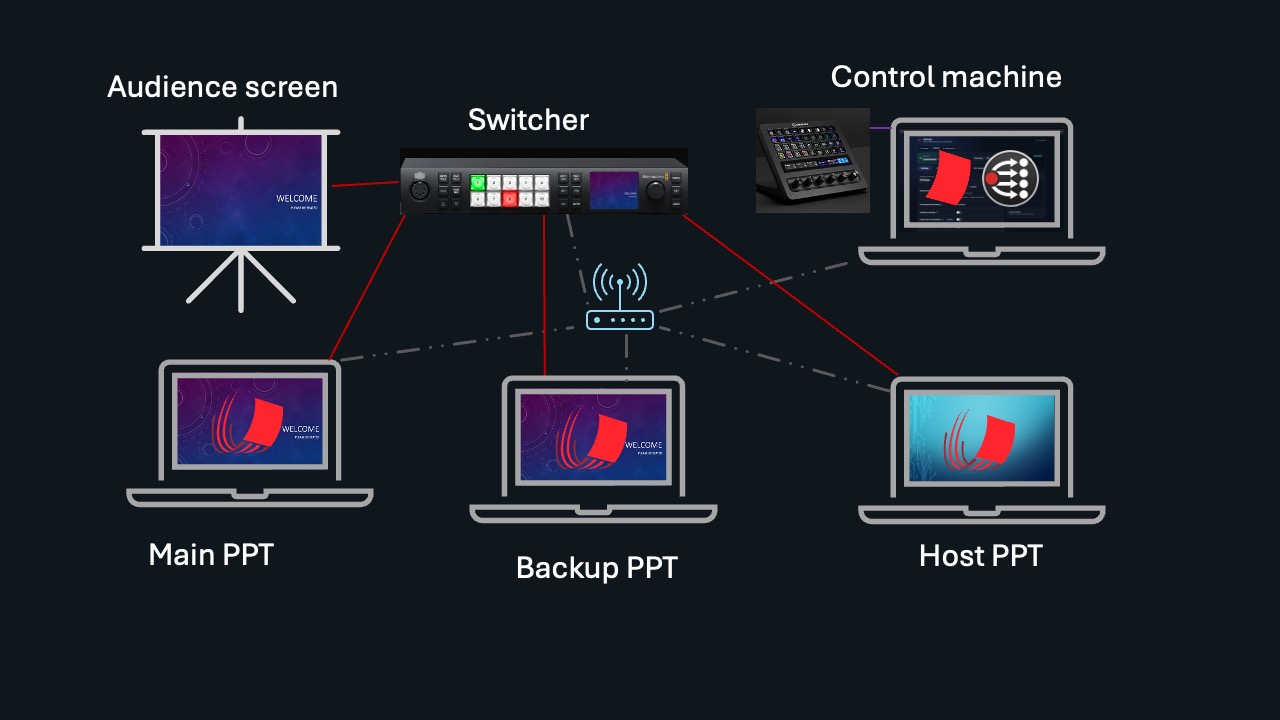
Diagram of three APS presentation computers, a video switcher, audience screen, and a control machine running APS Hub on the same network
A typical setup: three presentation computers, one control machine running APS Hub and Bitfocus Companion.

One page for all your presentation computers

APS already reduces how many computers a show needs — one machine can play multiple presentations in sequence and put video and images on top. But on bigger events, three or more presentation computers is the norm, not the exception: a main machine holding each speaker's deck, ready to play in sequence (13.00 John Smith.pptx, 13.45 Jane Olsen.pptx), a backup mirroring it or feeding presenter notes to the DSM, and a master presentation machine for the slides between speakers — "Next: John Smith", "Lunch. Be back at 13:30".

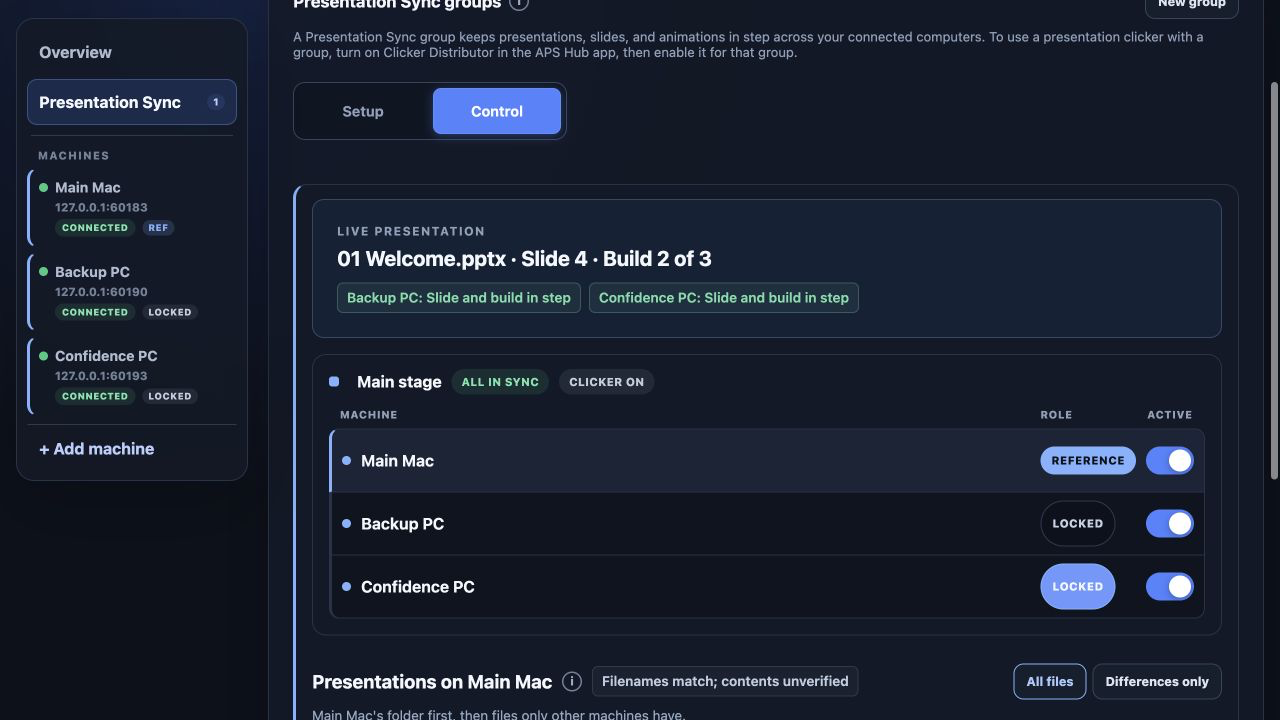
APS Hub gives you one controller page for all of them. See at a glance what every machine is showing, and jump into any of them to adjust settings.

This is also why Hub is a dedicated app rather than a server built into APS itself: you can install it on any computer on the network — the operator's laptop, a production machine — and control the whole rig from there.

Send files to your APS machines over the network

Together with Hub, APS gains a new trick: you can upload files from the browser straight into the still image, media player, and presentation slots on any connected machine — ready to play.

Picture the classic scenario: the show computer is live on screen, the speaker just handed you a corrected deck, and you're not running a shared folder like Dropbox or Syncthing on that rig. With Hub, you push the file to a slot over the network and it's there. We think of it as a safety net — a guarantee that you can always get the right media on screen, even when everything else fails.

APS Hub file upload panel with a PowerPoint file selected and the Transfer and assign button
Push the corrected deck to a slot on the show machine — without touching it.
Microsoft Office Security Alert blocking external picture references in a PowerPoint presentation
Native PowerPoint and Windows dialogs still need someone at the presentation computer.

What Hub doesn't do

Hub handles almost all everyday APS controls, but it doesn't replace physical access completely.

  • Desktop dialogs. If PowerPoint or Windows asks for confirmation, someone still needs to respond on that computer.
  • Full file-system access. Hub can upload files directly to APS slots, but it does not expose the machine's full file system.

Keep a basic access fallback for unusual situations.

APS API documentation showing a JSON command with a command name and parameters
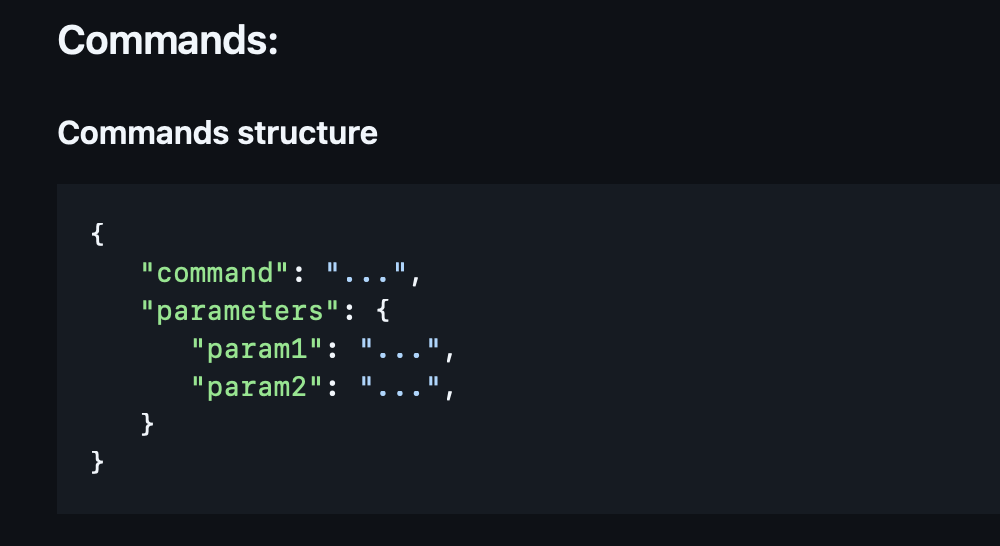
APS commands use a straightforward JSON structure: name the command, then provide the parameters it needs. Hub uses this same public API to control connected APS machines.

Built on the open APS API

APS Hub is built entirely on the public APS API — the same API that powers the Bitfocus Companion module, with a few additions we made for Hub, like auto-discovery of APS machines on the network. (Auto-discovery will make its way into the Companion module at a later stage, too.)

The API is open for anyone to use, and that's part of why we built Hub in the first place: to show what's possible with APS, and to serve as a working reference for controlling APS over the network.

Explore the APS API

Getting started

  1. 1

    Install APS 4.4 or newer on every presentation computer. APS is the paid app that opens and runs your presentations.

  2. 2

    Download and open the free APS Hub app on your control computer. The server starts automatically. On Mac, make sure to pick the right installer for your chip (Apple Silicon or Intel).

  3. 3

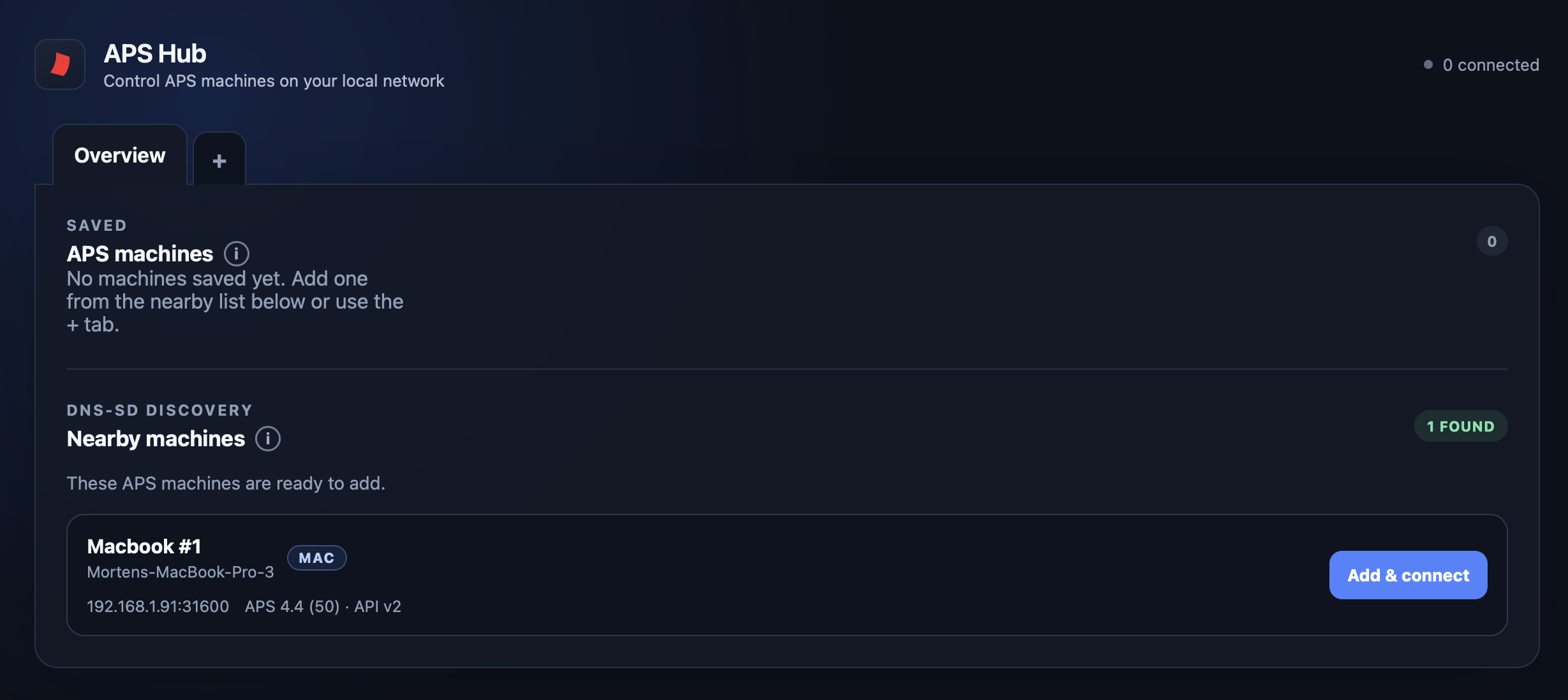
    Connect. If auto-discovery is enabled in APS, your machines appear in Hub automatically — just click Connect. Otherwise, enter the IP address and port, the same way you would in Companion.

  4. 4

    That's it. If you know the APS desktop apps, the interface will feel familiar — most options are the same ones, in the same places.

APS Hub Overview showing a nearby APS machine found through DNS-SD discovery with the Add and connect button
With auto-discovery enabled, your APS machines appear by themselves — just add and connect.

APS Hub is free. APS is paid.

APS Hub is a free companion controller and will stay free. It does not open or run presentations by itself. Each presentation computer must have APS 4.4 or newer installed, with a paid APS licence for unrestricted use.

Hub app: free forever

It's a beta — help us break it

This first version needs public testing before we'll call it show-safe. Please put it through its paces on your test rig, tell us what works and what doesn't, and don't rely on it as your only control path on a real show just yet.

Send feedback to info@presentationtools.com

What's next

Hub marks a small shift in how we think about APS. The point was never to stack everything onto one computer — it's to give you a complete system for presentations and media across all the computers on your event. Hub is the first step in making those machines work together, and there's more coming on that front.

For now: download it, connect your machines, and let us know how it goes.

Add Hub to your APS rig.

Install the free Hub app on your control computer, then connect to the APS 4.4+ machines running your presentations.