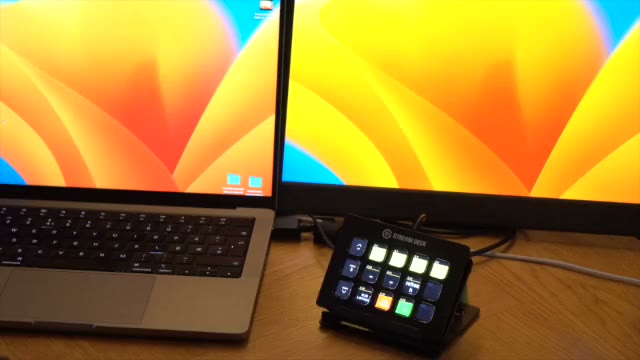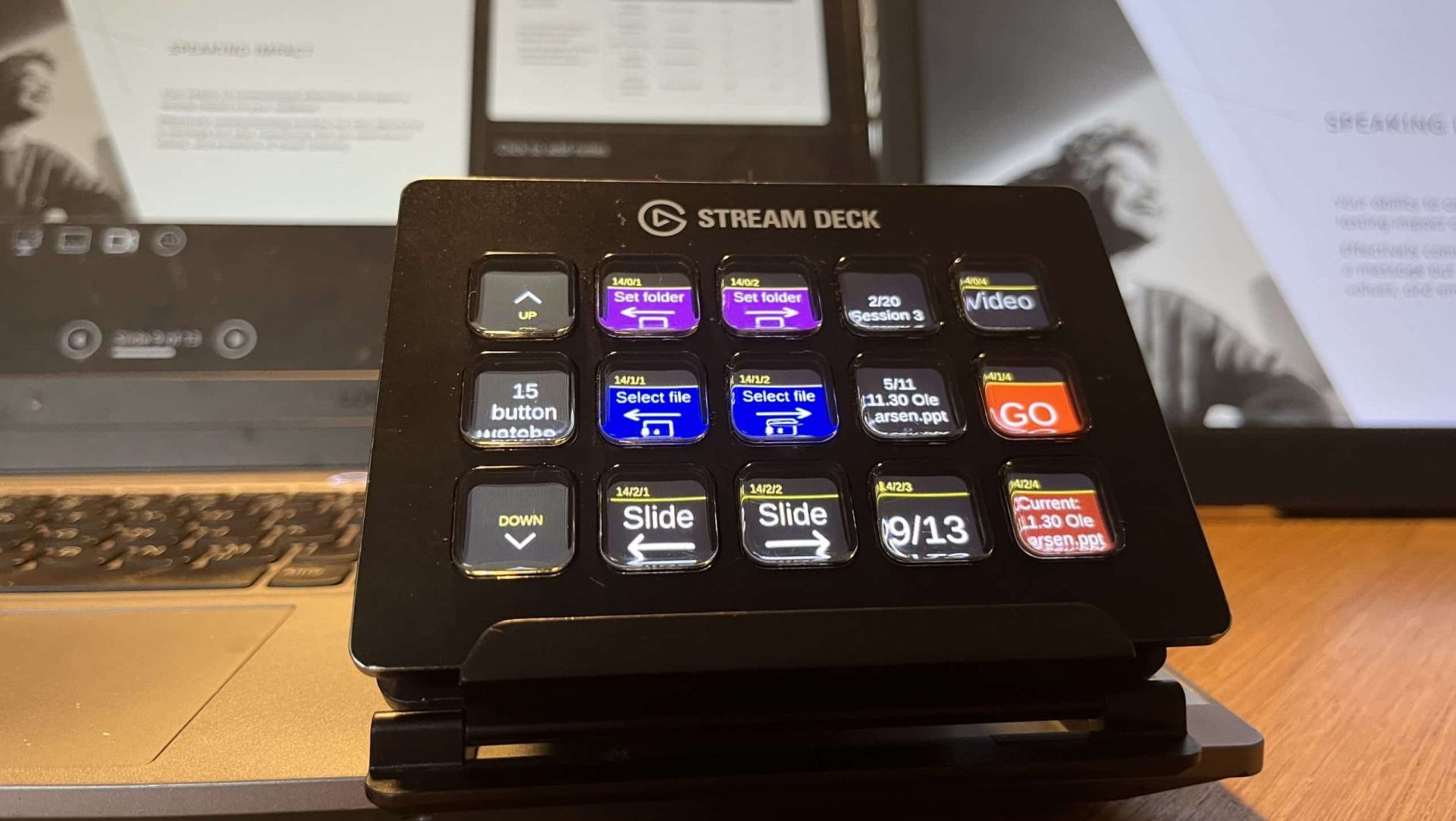
Most of what you do with Auto Presentation Switcher (APS) during a show happens on Companion buttons: open the next presentation, go to a slide, show a still image. This release of the APS module adds four new features, built on information that recent APS versions for Windows and Mac report over the network.
You need Companion 4.2 or later. Each feature also needs a recent APS version, listed at the end of this article.
1. PowerPoint sections on your buttons
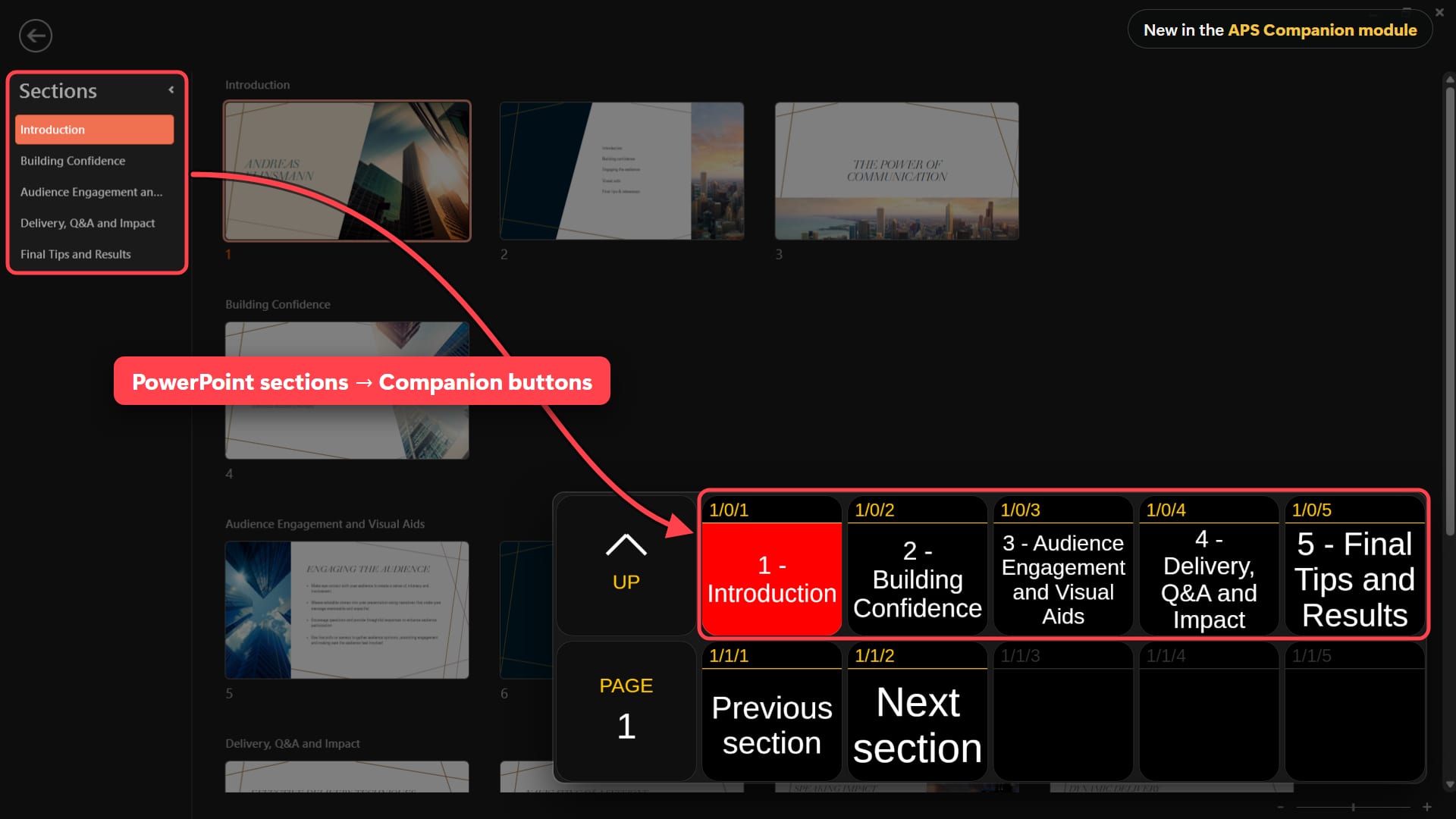
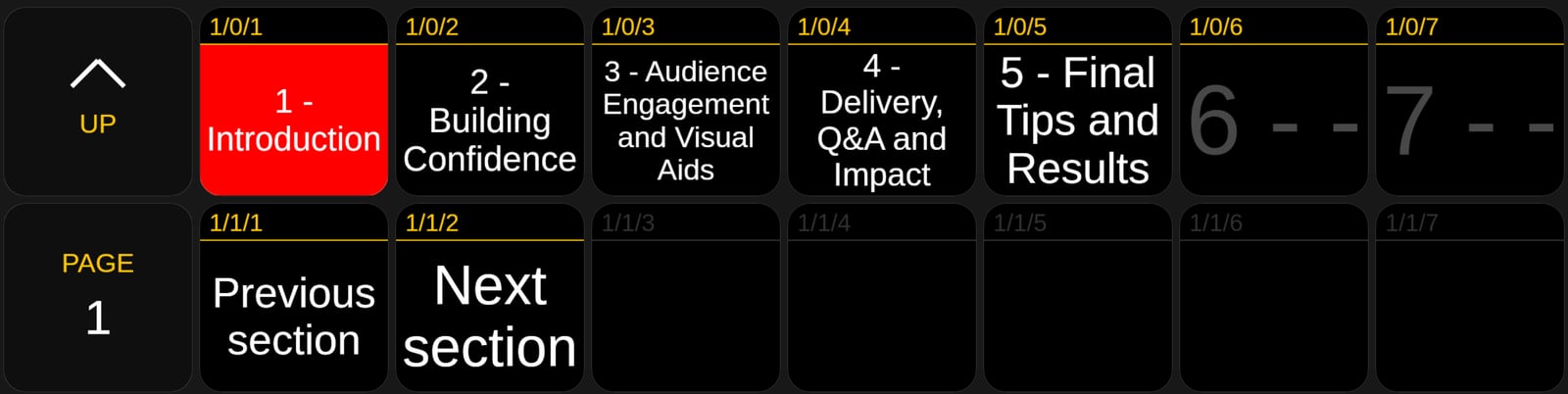
If the speaker has organised the presentation in sections, those sections now appear in Companion. Jump straight to the first slide of a section, or step through the talk one section at a time with Previous section and Next section.
In Companion, go to Presets → APS → PowerPoint sections and drag the buttons you need to your Stream Deck layout. There are presets for Previous section, Next section and Section 1 to 20. Each section button shows the number and name of the section, turns white when the presentation has that section, and turns red while the current slide is in it.
Behind the presets is a new action, Slide: Go to section (PowerPoint), where you choose Previous, Next or a section number. Two new feedbacks, “PowerPoint section exists” and “PowerPoint section is displayed”, and variables such as $(aps:Powerpoint_sections_current_name) and $(aps:Powerpoint_sections_current_slide_in_section) let you build your own buttons around the current section.
2. Presentation notes as a Companion variable
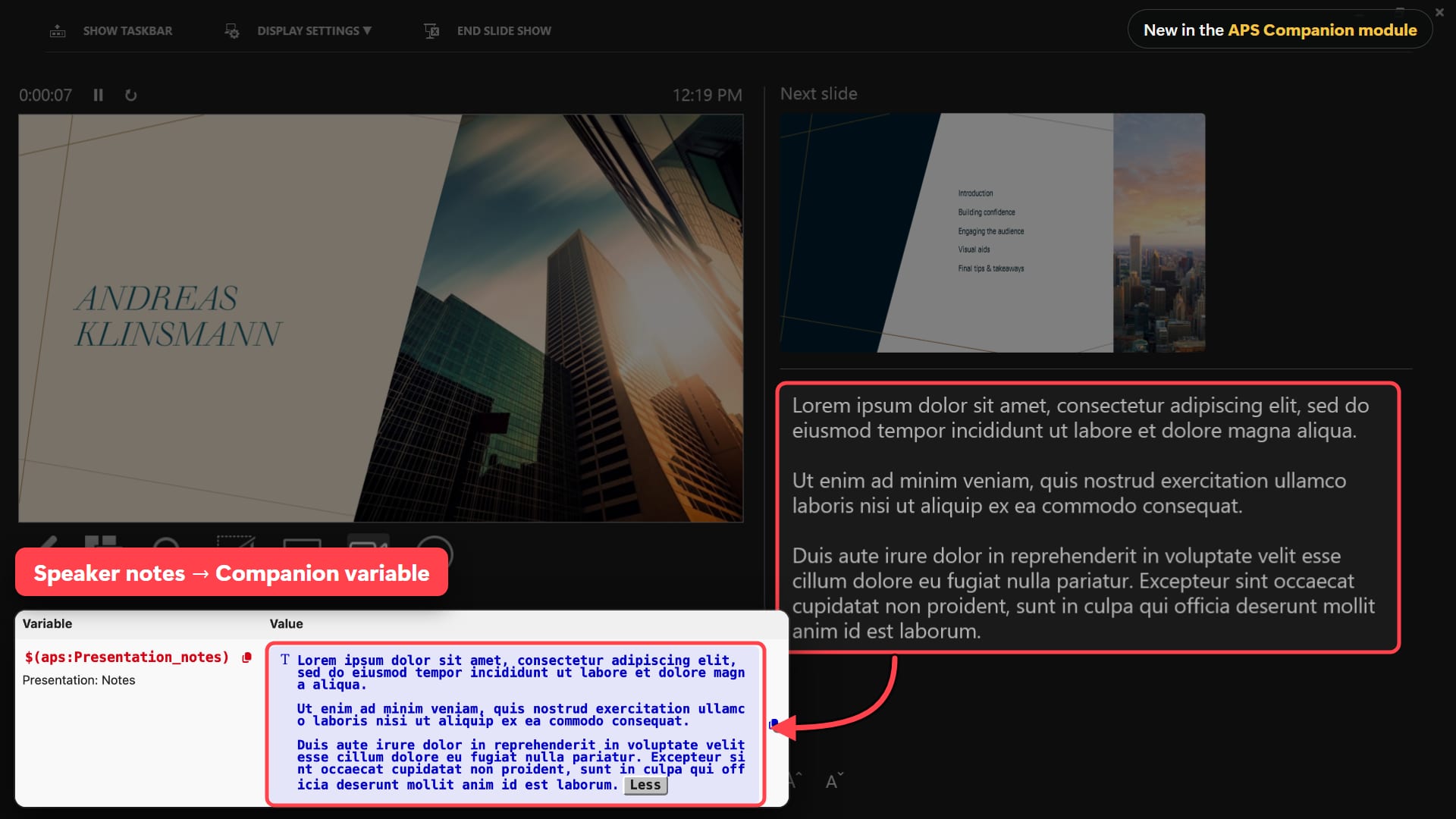
The notes for the current slide are now available in Companion as the variable $(aps:Presentation_notes). It updates when the slide changes, so you can use the notes wherever Companion accepts a variable, for example as button text.
APS sends the notes from PowerPoint and Google Slides, and on a Mac also from Keynote. If your APS connection in Companion has another label than aps, use that label in the variable name instead.
3. Auto discovery of APS machines
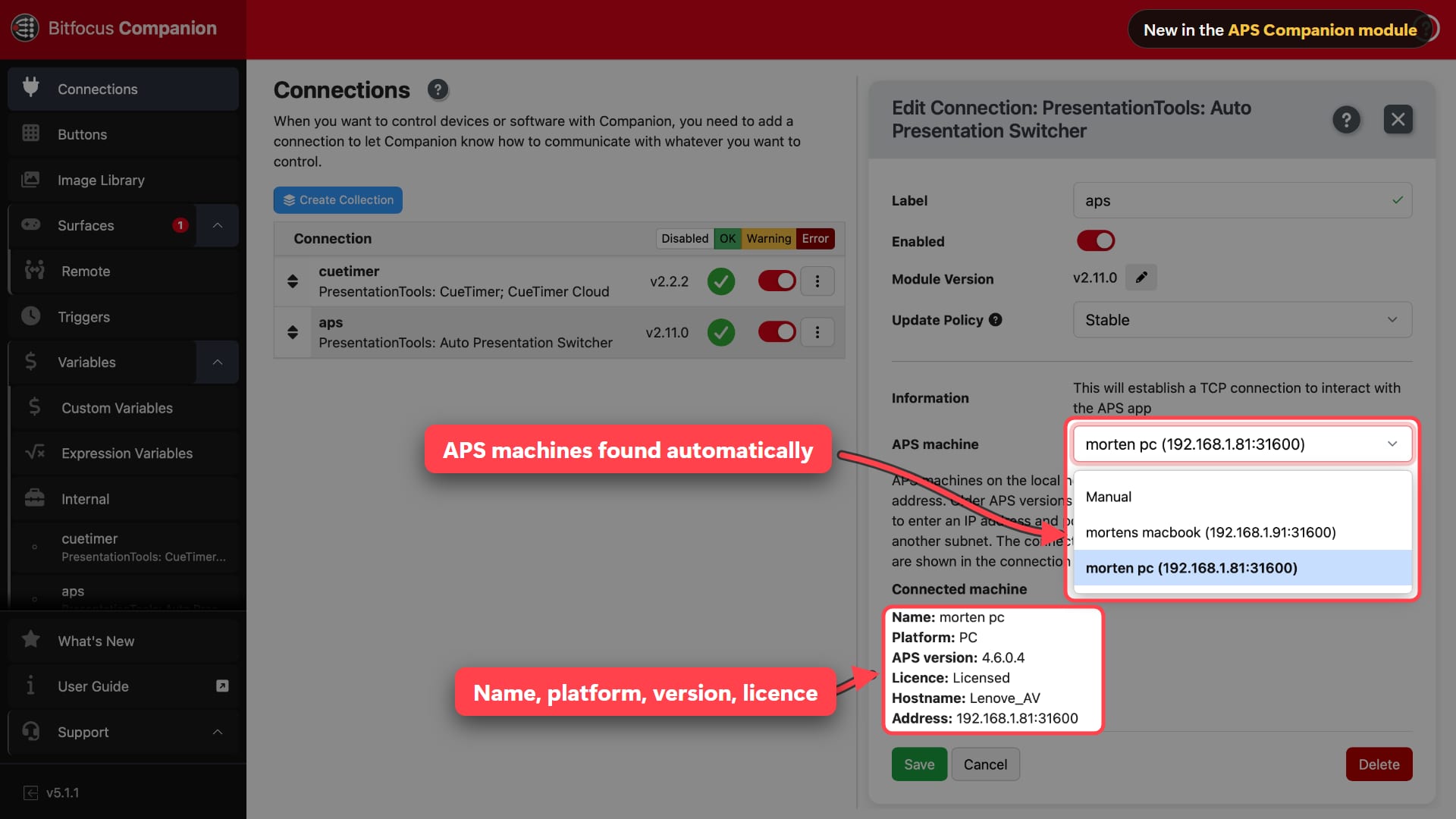
You no longer need to look up and type the IP address of each APS computer. When you add or edit the APS connection in Companion, the APS machine list shows the APS machines found on your local network. Pick one and Companion connects to it.
After connecting, the Connected machine section of the connection settings shows the machine’s name, platform, APS version and licence, so you can check at a glance that you’re controlling the right computer. The same information is available as variables, such as $(aps:connected_machine_name), which is handy when you control several APS machines from one Companion.
Discovery works on the same subnet, with network discovery turned on in APS. Choose Manual in the list and type the IP address and port (default 31600) as before when:
- the APS computer runs an APS version without network discovery
- it’s on another subnet or VLAN
- the network blocks multicast DNS
Companion saves the IP address of the machine you choose. If that computer later gets a different IP address, choose it again from the list.
4. Build steps for PowerPoint, Keynote and Google Slides
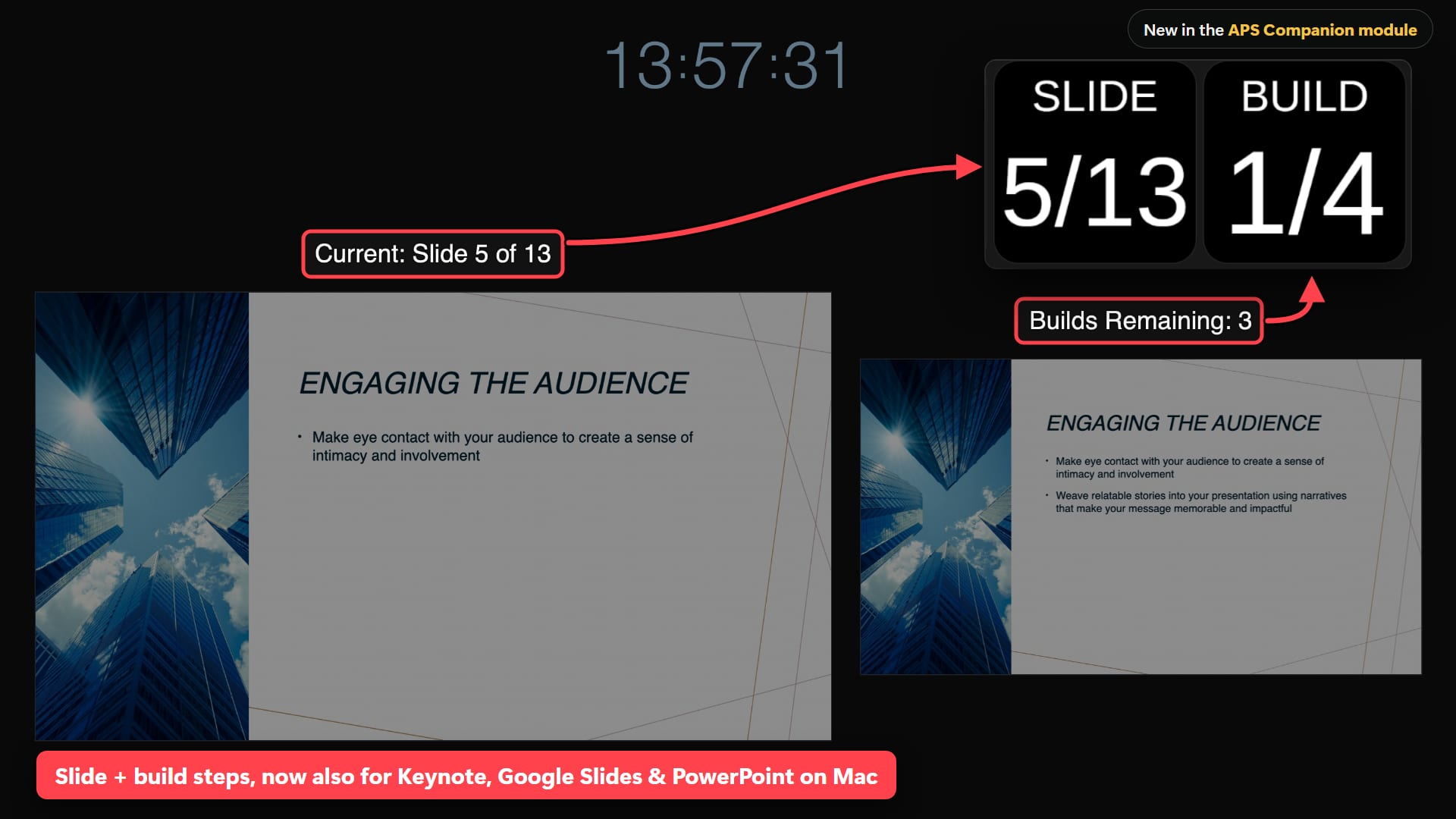
Companion can now show where you are in the builds (animation steps) of the current slide, not just which slide you’re on. Until now this only worked with PowerPoint on Windows. It now also works with PowerPoint and Google Slides on Windows and Mac, and with Keynote on Mac.
The new variable $(aps:Slides_builds_count) holds the number of builds on the current slide, next to the existing $(aps:Slides_current_build). The new current build/builds count preset under Presets → APS → Presentation slide control shows them together, for example 1/4. Put it next to the slide number button, and you can see how many clicks are left before the next slide.
Also new in this release
- Settings over the network: new actions, feedbacks and variables to read and change APS settings from Companion, such as the main presenter screen, presentation file handling, Seamless Switching and the controlled PDF program
- Presentation preparing: the slot, watched-folder and next/previous presets turn orange while APS prepares a presentation, before turning red when it’s displayed
- Actions that match the platform: Keynote choices are labelled (Mac) and hidden when APS runs on Windows, the PowerPoint media controls are hidden when APS runs on a Mac, and only PDF programs that APS finds installed are listed
Requirements
- PowerPoint sections, presentation notes and settings: APS 4.3.0.0 for Windows or APS 4.3 (46) for Mac, or later
- Presentation preparing: APS 4.4.0.1 for Windows or APS 4.3 (46) for Mac, or later
- Build steps: APS 4.5 (52) for Mac, or later. On Windows, build steps for Google Slides need APS 4.5.0.0 or later
- Auto discovery: APS 4.4.0.0 for Windows or APS 4.4 (50) for Mac, or later
With APS 4.6.0.2 for Windows and APS 4.6 (59) for Mac or later, machines appear in the discovery list under their PC tag or computer name. Earlier versions with network discovery are listed as APS followed by an ID. The module itself needs Companion 4.2 or later.
How to update the APS module in Companion
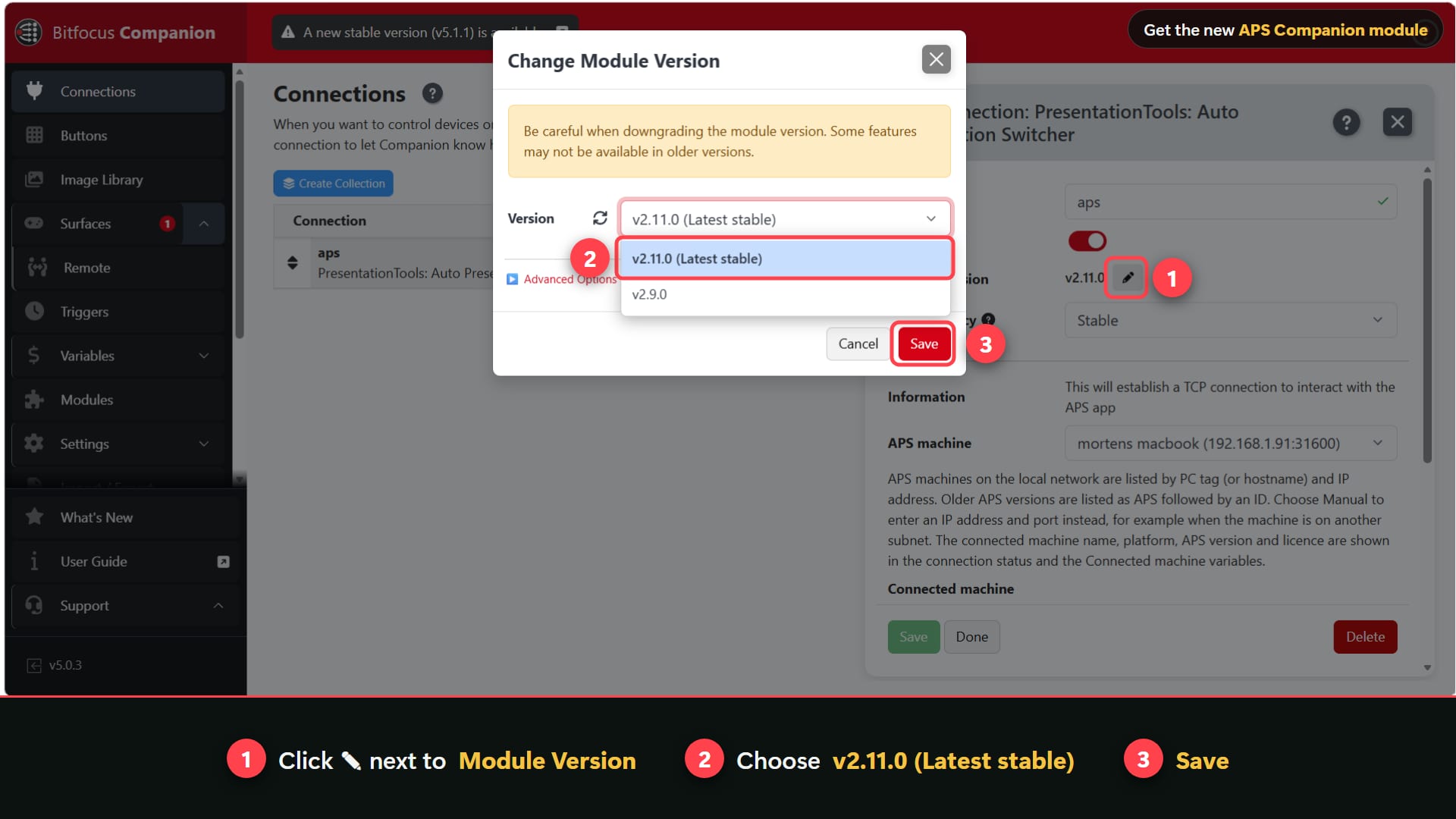
In Companion, open the APS connection (PresentationTools: Auto Presentation Switcher) under Connections. Then:
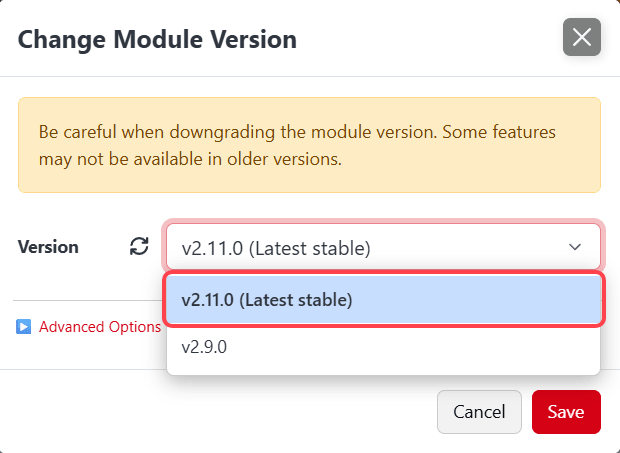
- Click ✎ next to Module Version.
- Choose v2.11.0 (Latest stable).
- Click Save.
Then download the latest APS for Windows or Mac to use every feature in this release.