The missing font that PowerPoint never warns about
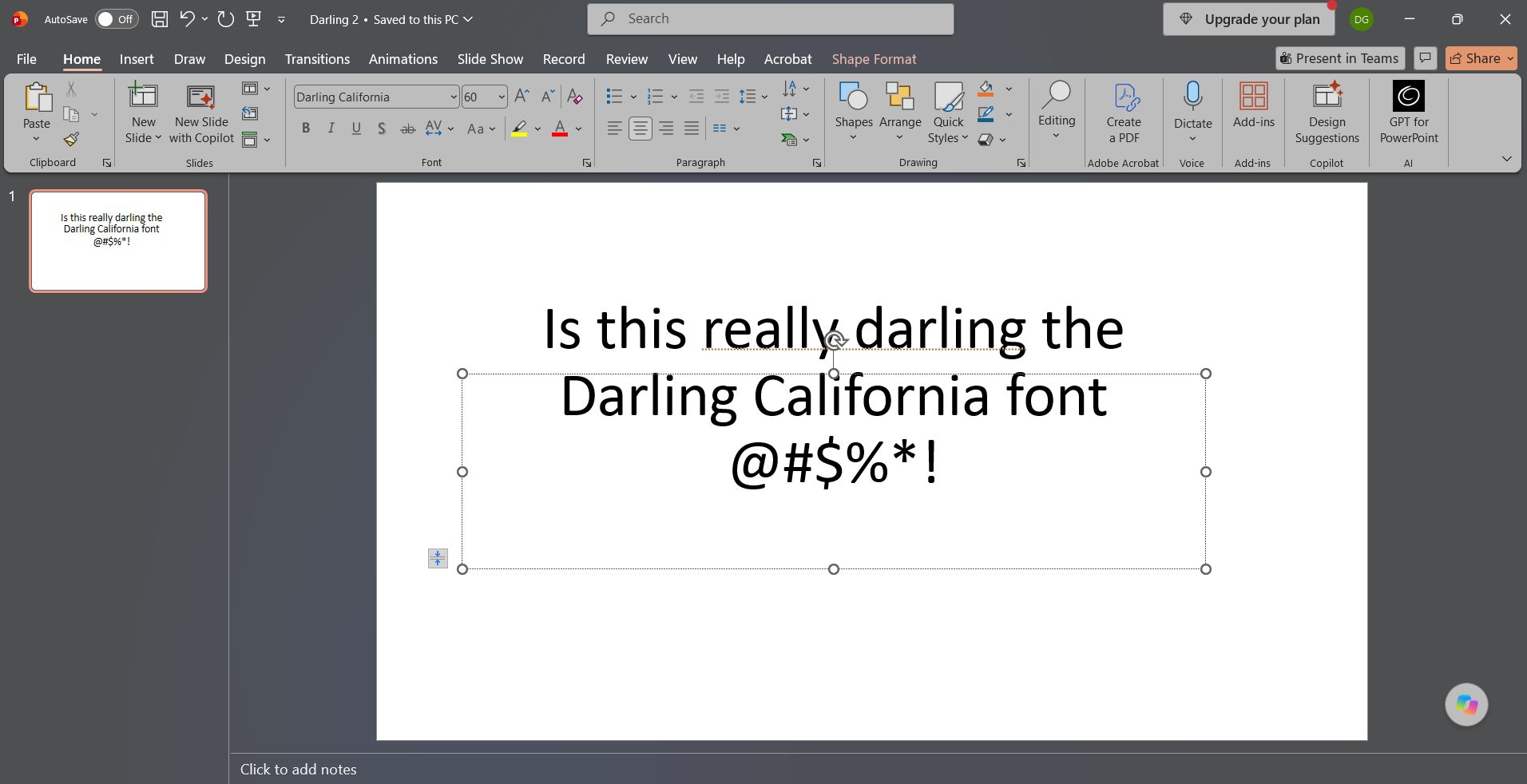
PowerPoint uses the fonts that are installed on the computer it’s running on. If a presentation is made with a special font like Darling California shown in the picture, and this font isn’t installed on the AV-computer used to run the show, then another font will be used. But here is the trap: PowerPoint won’t warn you that the wrong font is being used, the program will silently replace the missing font.
(An option here is for the presenter to store the presentation with embedded fonts, but then it is not possible to edit the presentation. And after somebody has changed the presentation into an editable version, there is no turning back: the original fonts are lost, and you still get no warning. Same problem from a different angle.)
Our solution: Font warnings in Auto Presentation Switcher
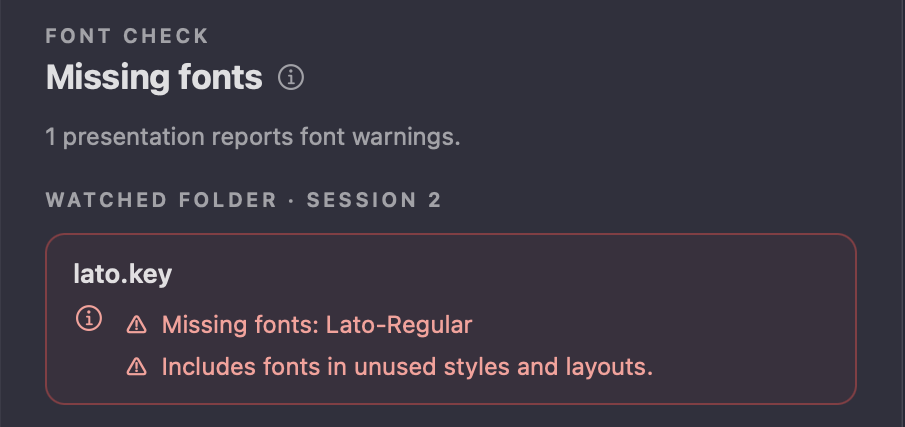
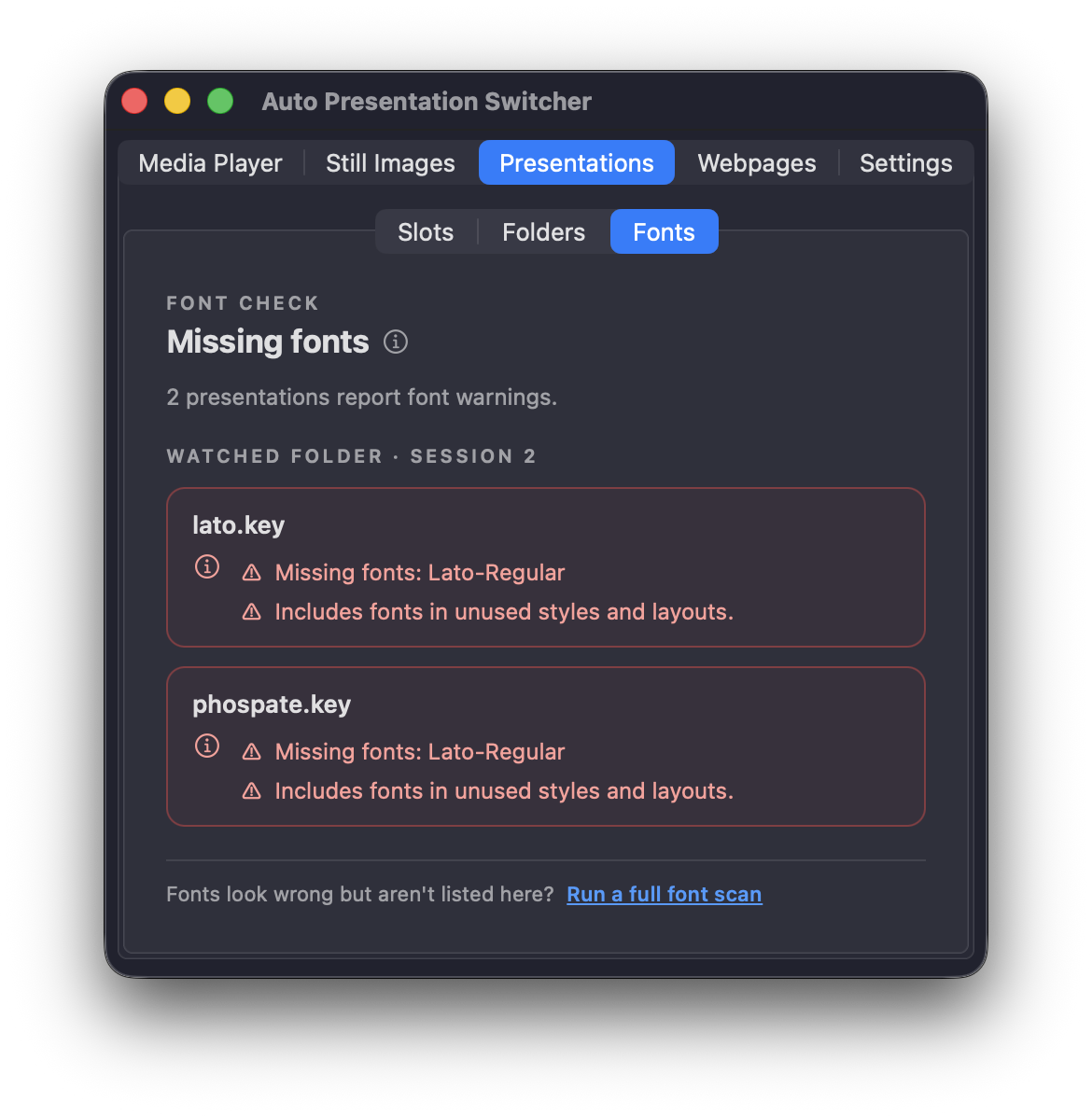
When you turn on “Check presentation fonts”, then Auto Presentation Switcher (APS) will automatically scan your PowerPoint and Keynote presentations for the fonts being used and compare that with the fonts installed on your system. If something is missing, you will get notified.
The next step is then to find the missing fonts and install them. After this is done, and PowerPoint or Keynote is restarted (if necessary), the warnings will disappear.
Note that finding the right fonts, and making sure you have the permissions to use them, is something that you will need to do yourself. Sometimes corporations can send you restricted fonts that can’t even be used outside their organization, and they forget about this until they see the wrong font on the screen. But if you catch these issues early, then you might be able to solve it in a graceful manner. And that’s where Auto Presentation Switcher comes in handy.

APS Hub: Install missing fonts from a remote location

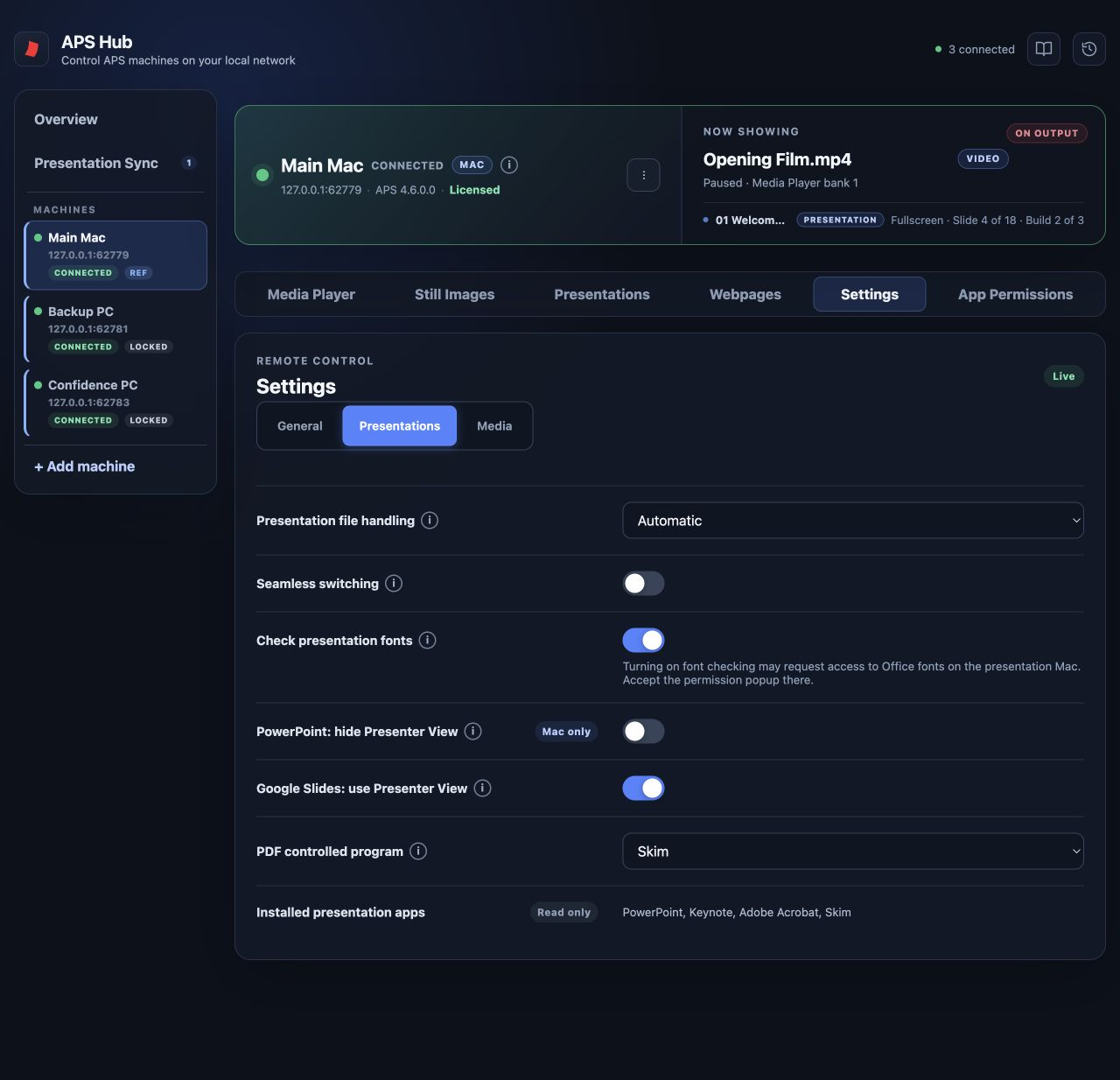
As long as you are operating the show-computer with the presentation, then you can use the native methods to install new fonts. Both Mac and Windows have easy ways to do this. But sometimes you are operating multiple show-computers at the same time, or you want to install a font while the show-computer is used for something else. In that case, the newly added APS Hub app has the solution for you:
Now you can install fonts over the network. Download the fonts you need on one computer, then use the browser to install them on the show-computers.
APS Hub will also show the same font-warnings as the regular APS apps.
Getting started with Font Control in APS
When you start APS for the first time, Font Control will be off. To turn it on, find the switch in Settings-presentation, or go to Presentation-Fonts and push the Fonts button
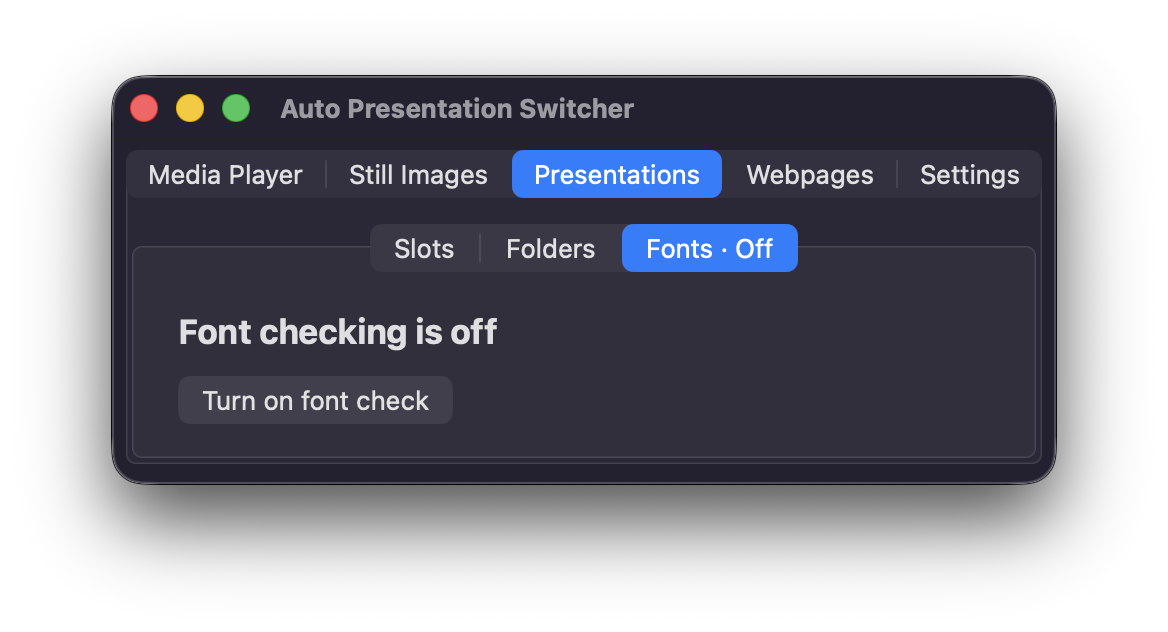
Now APS will scan all your font-folders for installed fonts on your system and compare that with the fonts in your presentation. If something is missing, you will get a warning. And from now on APS will also listen for changes, so if you later install a new presentation with missing fonts, or install new fonts on your system, APS will know about it.
Special permissions for macOS
On a Mac, macOS will ask for your permission when APS scans the Office font folder. After you allow it, APS keeps track of changes in that folder for as long as APS is open. To avoid asking for permission every time you start APS, the next launch uses the Office fonts found in the previous scan instead.
This is fine in almost every case. But if a presentation uses an Office font that APS hasn’t found in an earlier scan, it may be reported as missing. Click “Run a full font scan” at the bottom of the Fonts tab to check again.
On Windows, the Office font folders are scanned automatically, so no further action is needed.
What presentations are checked for fonts?
APS scans the presentations in the slot-presentations 1-40, and the presentations in the Watched folder. To check a presentation for fonts you need to place them in one of these destinations.
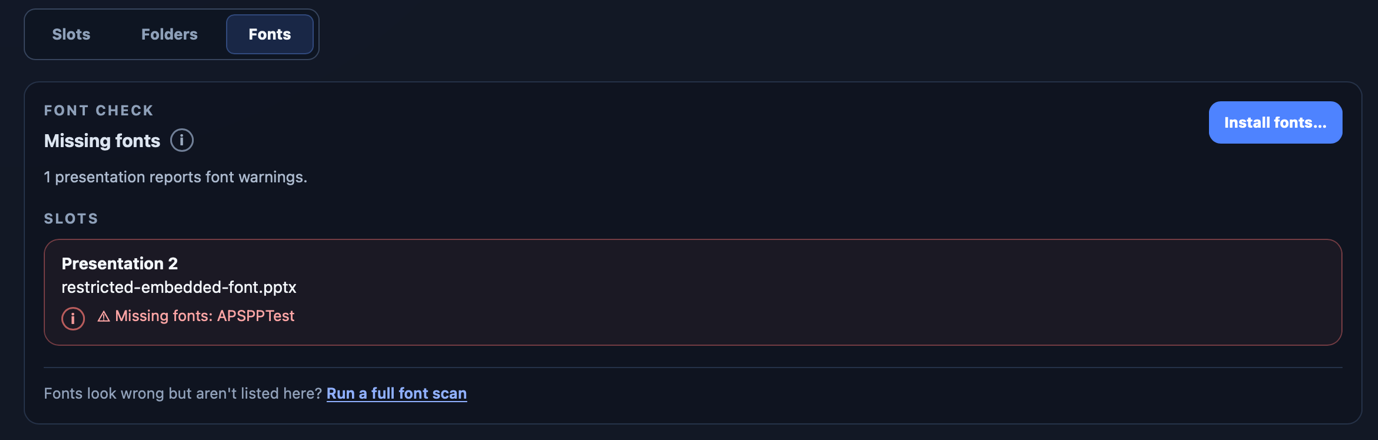
In the slots and folders view you will get notified that something is wrong with the fonts. Then go to the “Fonts” tab to get the full overview:
How to install fonts with APS Hub
Permissions for remote font-installs are handled separately from the font-scan. For security reasons, you first need to allow this on the APS machine with the presentations before APS Hub is allowed to install the fonts. You do this from the File Transfer section in Settings-Network
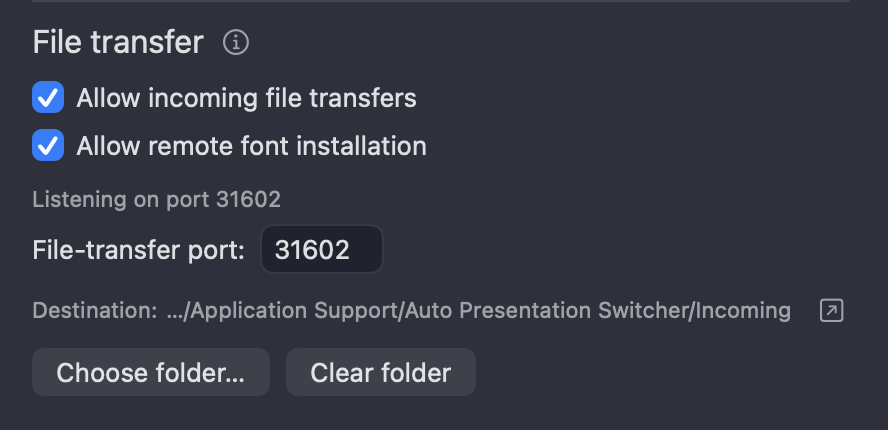
Note that both options need to be on: allow file transfer and font installations.
Now, when you are controlling this machine through APS Hub, you will see the “Install fonts” button active in the Fonts tab.
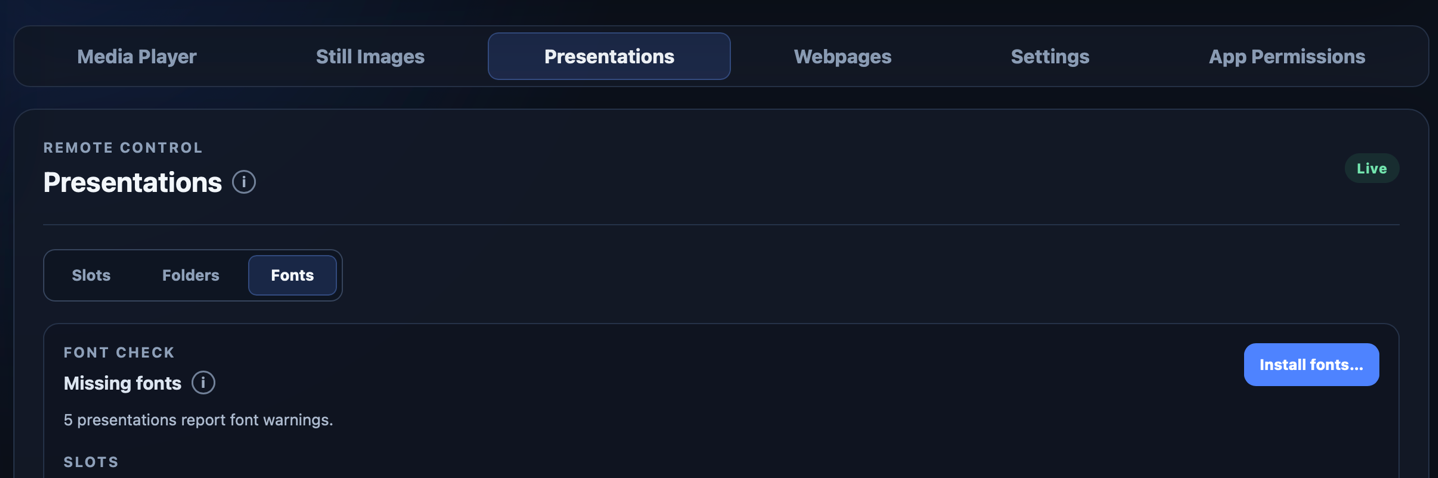
To install the fonts, push the “Install fonts” button, choose the fonts you need and send them to the APS machine. If PowerPoint or Keynote is opened you may be prompted to restart the application for the new fonts to work.
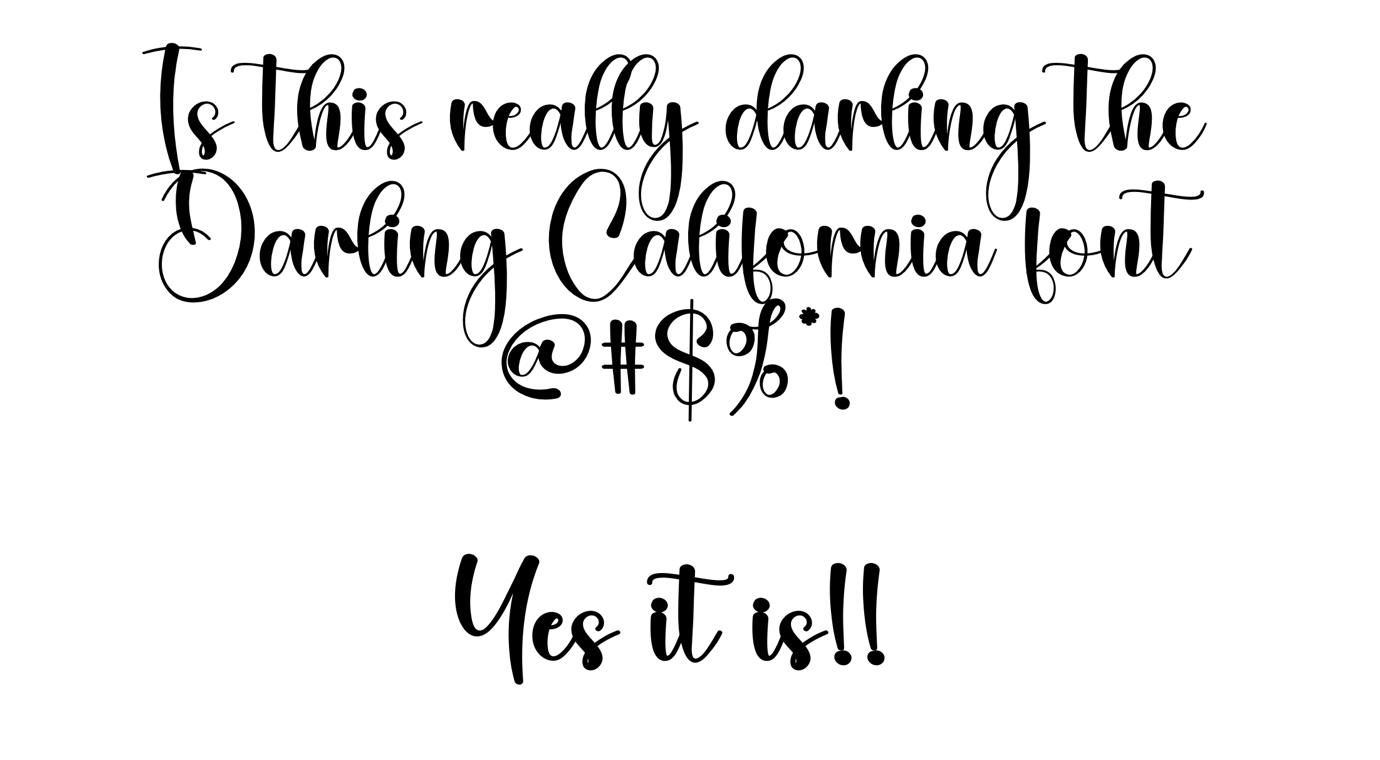
After the fonts are installed, the presentation will finally look exactly like the presenter made it in the office.
What presentation-formats are covered by APS Font Control?
APS will scan fonts for
- PowerPoint for Mac and PC
- Keynote for Mac
PDF files don’t need this scan because the fonts will already be embedded in the presentation. And this is why PDF is still relevant for corporate events, and why APS fully supports this presentation-format: if a company is not allowed to send a font out of its headquarters, they can instead choose to send a PDF presentation that will look the same on any machine.
APS with Font Control is available on APS 4.6 and above.