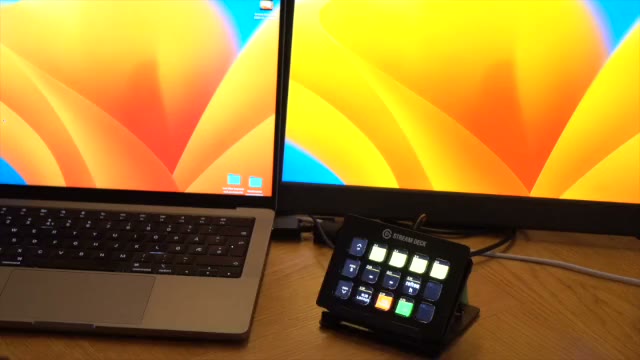
In live events, everyone has their own workflow for playing videos. Some technicians prefer dedicated playback tools like QLab or APS’s own Media Player, while others rely on videos embedded directly in PowerPoint. No matter which workflow you normally use, the reality is this: videos inside PowerPoint are extremely common, and as operators we still need to control them reliably.
That’s exactly why we added PowerPoint media control to Auto Presentation Switcher (APS )— a new feature that gives you the best possible control over embedded videos, along with a live countdown that shows how much time remains. And best of all: it works directly on Companion and Stream Deck, with no plugins or PowerPoint add-ins required.
Please note that this feature is only available for Windows
With APS 3.4, and Companion 4.1, you can now:
1. Start and pause PowerPoint videos from Stream Deck

A dedicated Play/Pause toggle button sends the correct command to PowerPoint. The button automatically updates its state depending on the video:
- Green when the video is ready to play. (for example, when using “In Click sequence”, and the video rests on the first slide)
- Red when the video is actively playing
- Blue when paused
2. Stop the video

3. Get a live video countdown on Companion
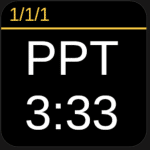
APS reads the media object directly from PowerPoint and sends a live countdown to a Companion button.
You can instantly see:
- Time remaining
- Elapsed time
- Total duration
This makes it far easier to time cues, switching, overlays, lower thirds, or any other action you want to trigger during playback.
4. Seek through the video
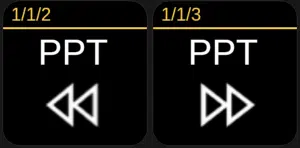
New Skip Forward / Skip Back commands let you jump through a video in rehearsal without touching the keyboard.
This works while the video is:
- Paused
- Playing
How to use set up PowerPoint media player control in Companion
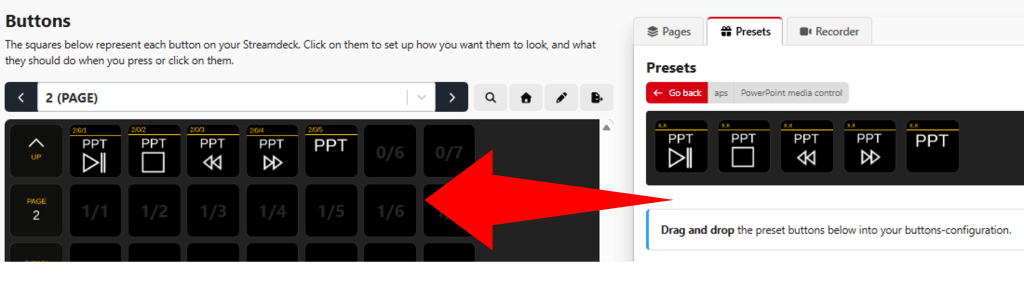
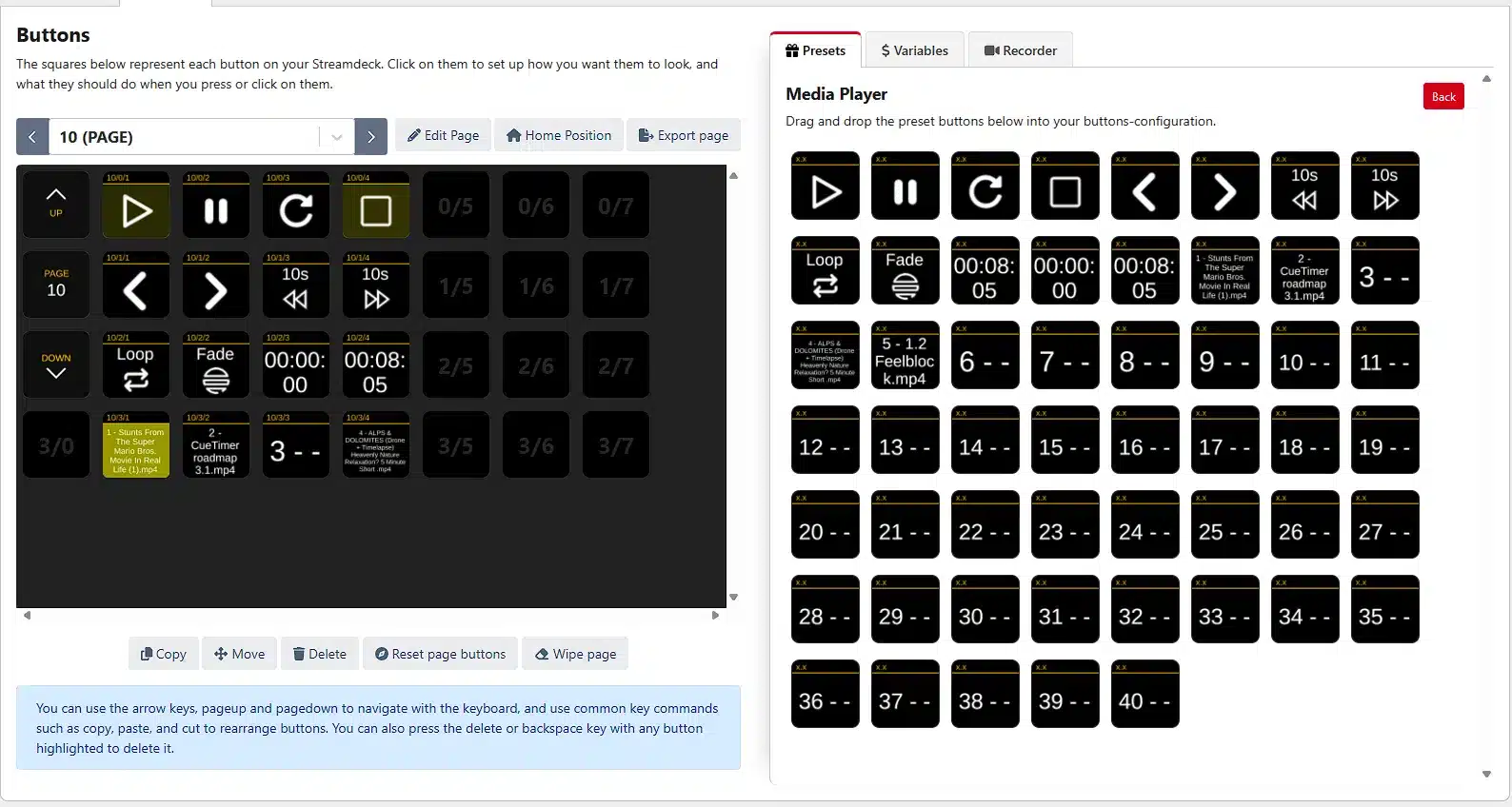
- In Companion, go to Presets → APS → PowerPoint Media Control
- Drag the Play/Pause, Time Remaining, or Skip Forward/Backward buttons to your Stream Deck layout
- Start your PowerPoint show through APS
- Watch the buttons update automatically as you navigate to a slide containing a video
All media-related commands and feedback are prefixed with “PPT” for clarity.
Can video playback in PowerPoint replace dedicated media players?
When you can control media-playback in PowerPoint from a Stream Deck, with a countdown that the producers can use to prepare the next cue, its easy to think that you no longer need a professional playback-solution like Qlab, Mitti or our own Media Player to play back videos in events and broadcasting. And yes, if a PowerPoint has a video that the presenter wants to have full control of, its often better just to leave it inside the presentation. But while we were working with the new PowerPoint media control, we also discovered some limitations with PowerPoint that can make it unsuitable for all types of professional broadcast playback:
- The video-feedback from PowerPoint can lag a bit, between 0-500 ms. For example, after the video ends, it can take some time before the play-button changes from red playback-color . This makes it less suitable for low-latency triggering of video-switchers, for example, if you want automatically switch back to a camera when a video finishes, PowerPoint is probably not your best option.
- We found a bug with the seek-command: in some cases, it would cause the video to repeat the next time you advance the slide. This bug is explained more in detail below. Its not a huge issue, but something to be aware of if you try to push the new PowerPoint media-player controls to the limit.
Bug report: Using seek-command after play-command in PowerPoint
If you try to reproduce the steps in the video, you will usually get a bug. Steps to reproduce:
– Have a video with option “In click sequence”. When the video is ready to play, use the “play” button, or APS command, to start the video, instead of the “next” button or presentation-clicker
– While the video is playing, seek to a new playback-position.
– Now the next time you advance the slide, the video will repeat instead of the presentation advancing forward.
The good new is that its quite easy to avoid this bug. For example, if you instead of using the play-button to start the video, use the regular “next” button, then you willl advance normally to the next slide when you are done with the video:
Or the bug wont happen if you dont seek to a new playback position. And ofcourse, during a presentation, you normally wont need to skip to a new playback-position anyway, so this wont be a big issue. But the reason we want to go in detail on this, is that this bug will also happen with the new APS commands, since we are controlling the presentation in a similar way as shown in the video. The only difference is that with APS you get Companion buttons instead of having to click on buttons in the video-window.
So to conclude, if you are a professional AV-technicians working with presentations on events, broadcasting and conferences, this new PowerPoint media-control from APS shouldnt completely change the way you work with video-playback: Dont sell your old playback-rig just yet. But im sure you will find it incredibly useful to know how much is left of the PowerPoint videos, and the producers will love it. And when you see the PowerPoint media-button lit up in green, you now have a button that confidently start the video, before the presenter remembers that the video was in “click sequence”, and not set to start automatically. If you dedicate just one or two Companion buttons to PowerPoint media, you will get much more control when the presenters has a video in their PowerPoint file.
Read also: Should you play videos outside PowerPoint?
Mac & PC