Google Slides is a popular presentation format for organizations and presenters who like to work from the cloud. With the latest version of APS, we make it easier for AV technicians to control Google Slides presentations during live events. Using APS along with Companion, you can now use Stream Deck buttons to:
- Open Google Slides presentations with URL
- Switch between opened presentations
- Put presentations into slideshow mode on a designated display with optional presenter view
- Exit presentations and put the browser window back to the operator display
- With seamless switching enabled, transitions in and out of fullscreen remain seamless (Windows)
- Get real-time slide progress on Companion buttons, just like with PowerPoint
- Navigate slides and go to a specific slide
Get started controlling Google Slides with APS and Companion
Google Slides support builds on the existing Chrome control in APS — if you’ve used that before, you’re mostly ready to go. The key difference is that APS now detects when a webpage is a Google Slides presentation and handles it accordingly: instead of just moving the browser window, APS will put the presentation into slideshow mode on the display you want, with optional presenter view for the operator.
There are no separate commands for Google Slides. You use the same commands you already use for webpages, and the same commands you use for slide control in PowerPoint and Keynote. APS figures out which presentation app you’re working with and responds accordingly.
This means the buttons for slide progress will show you the current slide in Google Slides when that’s what you’re controlling, and switch to showing PowerPoint progress when you move to a PowerPoint presentation. The same goes for the fullscreen and escape commands. Keep it simple and use the same buttons everywhere.
For more detail on how to set up and work with Google Chrome in APS, see our guide to controlling webpages with APS and Companion.
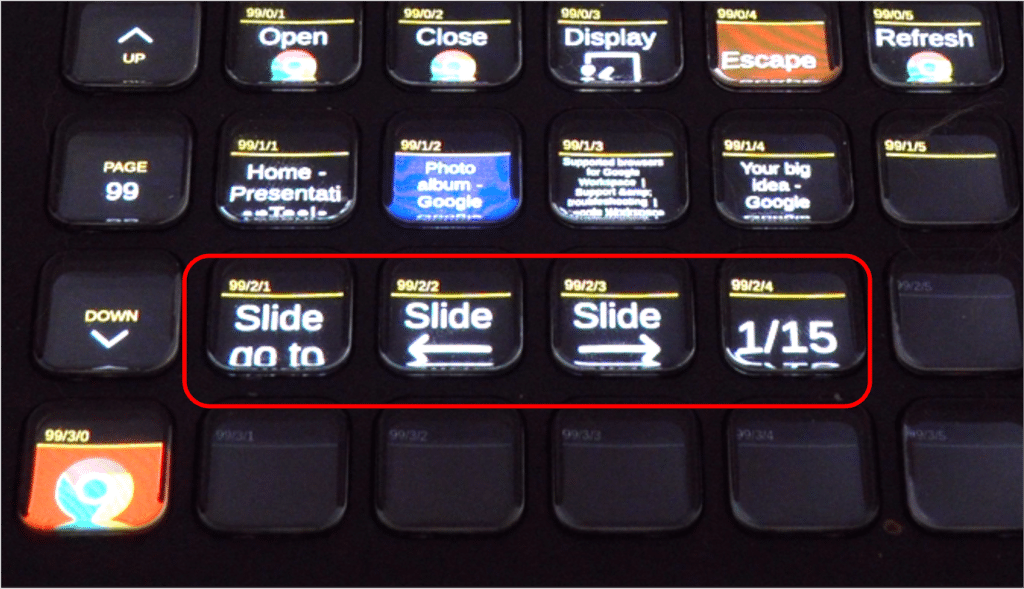
Highlighted are the the generic slide-buttons in Compaion for APS that will work both for PowerPoint, Keynote (Mac), Google Slides and the pdf-app you want to control.
New settings for Google Slides

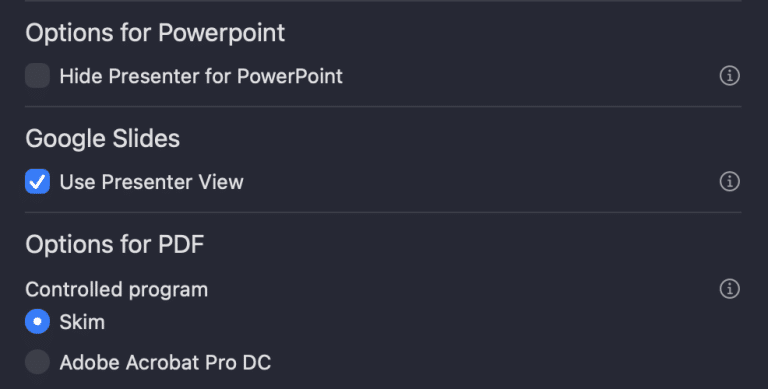
Use Presenter View — When enabled, APS will automatically open a presenter view window when putting a Google Slides presentation into slideshow mode on an external display.
Wait for fullscreen notification (Windows only) — Chrome shows a brief notification popup when entering fullscreen. By default, with seamless switching enabled, APS waits for this notification to disappear before revealing the new content. Turn this off to get faster transitions, at the expense of briefly showing the popup.
Open webpages from the new Webpages tab
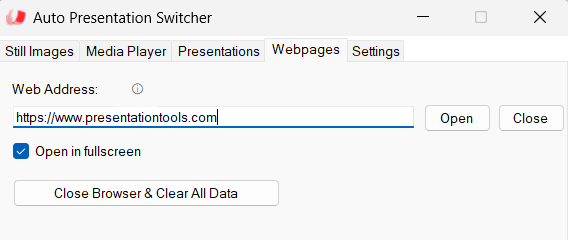
APS now has a dedicated section for opening Google Chrome webpages. This is useful for testing and quick access, but for full control during a show we still recommend using Companion with Stream Deck.
At the bottom of this section you’ll find the “Close browser and clear data” button. This clears all browsing data from the APS session — login credentials, cookies, browsing history — so the next operator starts fresh. Because APS uses its own separate Chrome profile, this never affects your regular Chrome browsing data.
Controlling Google Slides through Google Chrome — the native way

One of the main principles of APS is to always control presentations through their native apps. For PowerPoint files we use PowerPoint, for Keynote there is no choice, and for PDF we use dedicated PDF viewers. Nothing is more important than making sure the presentation looks exactly the way the presenter envisioned it.
This principle made our decision easy when adding Google Slides support. Google supports four browsers for Google Workspace, and warns that using an unsupported browser can cause presentations to not display properly. Of those four, Chrome is the natural choice — it has the most complete support for Google Workspace features, and it’s the browser most presenters build and preview their slides in.
Using Chrome does come with one trade-off. On Mac, most browsers take over the screen entirely when entering and exiting fullscreen, which means we can’t currently support seamless switching with Google Slides on Mac. On Windows, we handle this — APS hides Chrome’s fullscreen notification behind a screenshot, and new in v.4.2, you get the option to skip the wait for faster transitions. On Mac, in setups that include a hardware switcher, the transition can be handled there.
How it works under the hood
APS launches Google Chrome with a dedicated APS user-profile and connects to it through Chrome’s built-in developer port (port 9222). This is a well-documented interface that gives APS the ability to open and manage browser tabs, monitor page content such as slide progress and presentation titles, and trigger actions like entering slideshow mode — all without requiring a Chrome extension.
Because APS uses a separate user-profile, your personal Chrome browsing data stays completely isolated from the event. After the show, you can clear all session data with a single command from Companion, ensuring that no login credentials or browsing history are left behind on the presentation computer.
We would like to thank Dynamic Vision AV for their valuable input during the development of our Google Slides integration.
More info
Learn how to control webpages and web apps from APS
Download APS